
This page restores edit access when a plan opens read-only, will not save, or will not open the way you expect.
Use it when you can see the map but cannot place signs, or the header says locked. If the plan is missing from Home or Plans, start with My plan does not appear in the list. If the lock is a municipality review, the longer story is My plan is locked for review.
Share link vs your editor
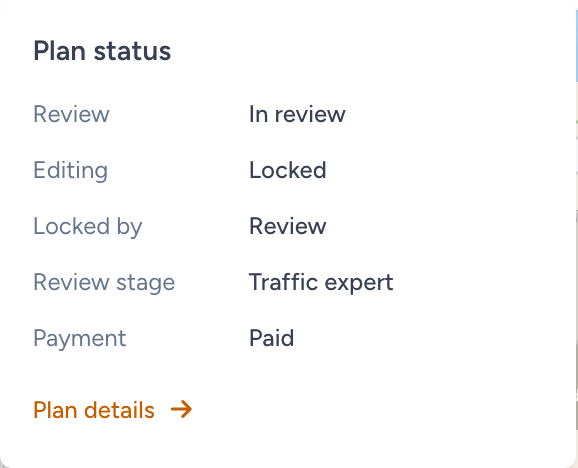
Anyone with the public URL can view the plan read-only. Open Plan status from the header's status or lock indicator: Editing shows Read-only, or Locked when a plan lock applies. On a phone the indicator can be just an icon. Open Plan details for the full title and schedule. You cannot place signs or save. How to? is hidden on that view.
Log in as the account that owns the work, Switch workspace to the right workspace, then open the plan from Plans with Open. Do not keep working in the share tab and expect Save to appear.
Copy link toast: Plan copied to clipboard! or Link copied to clipboard. That URL is always view-only.
Organization: seeing is not editing
In an organization, members can Open every plan they have access to. Only the assigned editor can change, duplicate, or delete it. The library row can read Editor: Sam Rivera. Everyone else gets a read-only editor.
Disabled tools show one of: Plan is read-only, Plan is under review, Plan is locked, Plan is approved and locked.
Owners and administrators use Assign editor on the plan menu. Dialog title: Assign an editor to “Demo traffic plan”. Field: Assigned editor. List: Choose an editor. Save assignment. Success: Editor assignment updated. A suspended member may show membership inactive. Fail: The editor assignment could not be updated.
If the editor’s membership is suspended, the plan stays, but nobody can edit until someone reassigns it.
If Switch workspace shows Your membership is suspended, you cannot open the private workspace. A public share link can still open read-only.
Walkthrough: Move, copy, and assign an editor.
Review locks
When a municipality has an active review, the plan locks. Open the header's Plan status to distinguish Review, Editing and Locked by. A review result and an edit lock are different facts: a separate external or administrative lock can remain after review ends. Typical copy elsewhere in the editor:
- Saving: the header Save control is hidden while the plan is locked. Check Editing and Locked by in Plan status.
- Approved lock explanation: This plan is locked because it has been approved
- Comments: In review by municipality
- Event plans: This event plan is locked and cannot be edited.
- Approved body: This plan has been approved. Further edits are disabled.
You cannot start the first municipal review yourself. The app says Initial review requests are currently started by the municipality. Submit your plan through the municipality procedure first. After Changes requested or Review closed, you may resubmit when the UI allows.
Move to organization during review: Under review — move unavailable. Copy can still be allowed.
Do not duplicate the plan unless the municipality asks. Duplicates can lose review history. Review for organisers.
Save failed
The editor's save indicator shows pending changes, saving, saved or failure. Open Save options to change Auto-save, an account preference shared by traffic and event plans. With automatic saving off, use Save. After a failed automatic save, Save is available to retry too. Keep the tab open until Auto-save: saved.
Fail toasts: Could not save traffic plan. Event: Failed to save event plan. A traffic-plan lock during save can read Your latest changes could not be saved. Reloading the latest version... after its lock explanation. Do not keep clicking Save. Read the lock and follow the event recovery warning below when it appears.
Could not update auto-save preference means the toggle did not stick. Keep the editor open, save manually if possible and retry the preference. Protect unsaved work before refreshing.
Protect an unsaved event drawing
If the event editor says The last save could not be confirmed., keep the tab open. Retry save retries the same uncertain save. You can also choose Download unsaved changes to keep the draft for recovery. Do not start another copy of the plan to guess whether the save succeeded.
If it says Saving is paused to protect your changes., another version or an access change prevents a safe save. Repeated saves do not resolve that conflict. Choose Download unsaved changes first. Reload saved plan becomes available after the download. It opens the saved server version, or returns to Plans if this editor has no saved plan yet. Changes from the open draft may need recovery with support.
The download is a JSON recovery file for support, not a PDF or an ordinary backup that you can import through the app. Keep it private and send it with the plan link if you need help. Do not clear browser data or close the only copy of an unsaved draft before protecting it.
Map never loads
Use a current desktop Chrome, Edge, or Firefox. Wait until Opening Map Environment... is gone and tiles are visible. Disable heavy blockers and retry. Map will not load or stays blank.
Event plans may say Map is not ready yet if you click too early. Wait, then place again.
Older imported plans
Some drawings from before 01-10-24 toast that placed items may have shifted, and that signs with text need the road type reselected. Move sign anything that is no longer on the carriageway. Open Details, pick the road type again (Please select a road type if it is empty), then Save. That is a one-time adjustment, not a permanent lock.
What good looks like
You are logged in, in the correct workspace, and (for an organization plan) you are the assigned editor. The header is not locked. Save or Auto-save works after a change. Traffic Objects is clickable.
If it still fails
Email customer@traffic-chart.com with the plan link, whether you used a share URL, and your role. Contact support. Team roles: Organizations and members.
Locked by CityLogic
Locked by CityLogic is an external lock, not a municipal review status. Ask the responsible CityLogic contact to release it, then refresh the plan. Editing, deletion, post-instruction changes, editor reassignment and transfer to another workspace stay blocked while it applies. Viewing and exporting remain possible. An independent permitted copy has no CityLogic link or external lock and does not replace the original.
A separate review lock can remain after CityLogic unlocks the plan. A CityLogic link never grants extra edit rights, and public viewers do not see its integration details. Create and open plans from CityLogic.