
Keep the detail when your map needs more paper
A traffic-plan detail map can now continue across adjoining sheets. Select a Detail map and choose Split across sheets. Drag a corner outwards to cover more of the works without shrinking the signs, or inwards when fewer sheets are enough. Change Paper size to see the same selected area laid out on a different format. Print the PDF at actual size and assemble it using the sheet positions in the footer.
Create and print a sheet layout.
Point to the same place on a printed map
Turn on Reference grid in the export sidebar to add a search grid to each traffic or event PDF map page. Columns A to H and rows 1 to 8 make it easier to tell a colleague which part of the drawing you mean. The grid is off by default and does not change the drawing.
This is separate from Split across sheets: a sheet layout divides a larger map over paper, while the reference grid labels positions within each map page. You can use both together.
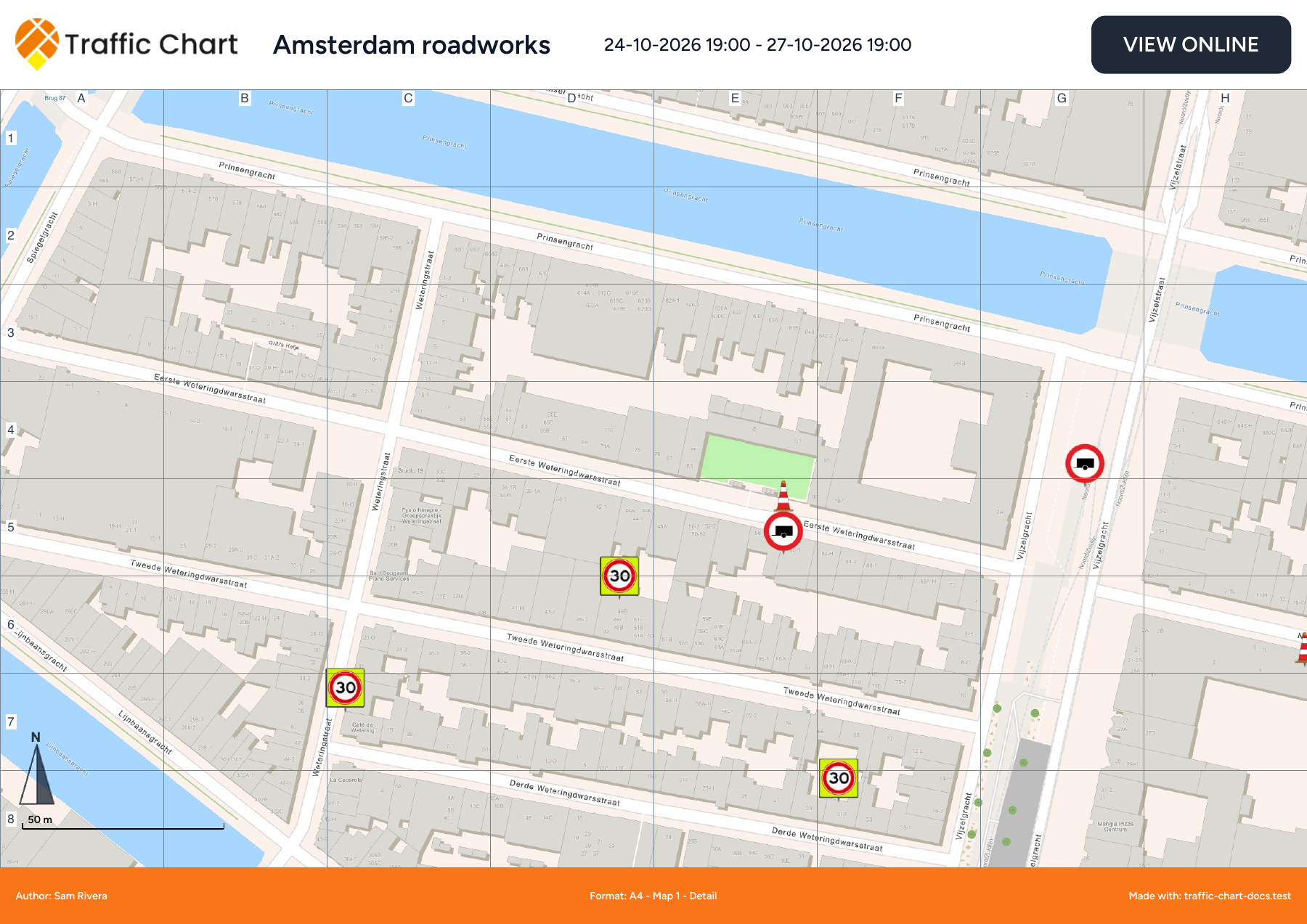
Add a reference grid to a PDF.
Your plan details and saving controls, together
In traffic and event editors, select the title or date summary to open Plan details. Change the name, dates and times in one place, then choose Apply. The save indicator opens Save options. On smaller screens, the navigation menu holds export and the other navigation actions, leaving more room for the map.
Open Plan status from the indicator before the title to inspect the relevant review, editing and lock information. Review results, editing rights, lock sources and traffic-plan payment appear separately, so you can understand why a drawing is available to edit or locked.
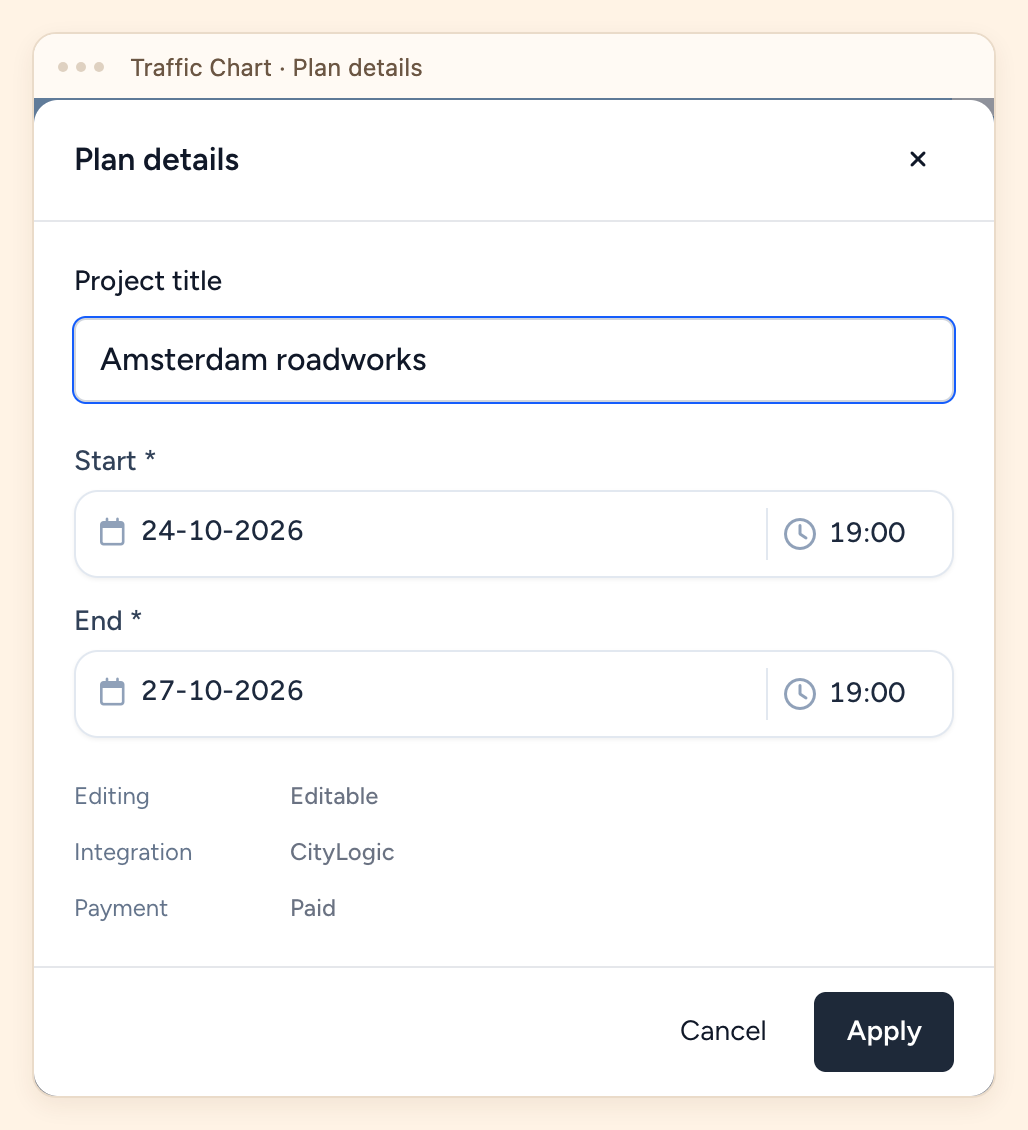
Find the updated editor controls.
Choose your event plan's country from the start
When you create an event plan, choose its Country before opening the editor. The object catalogue and country-specific map options then follow that choice. Existing plans keep the country already selected for them.

Create an event plan with the right country.
Protect your event drawing when a save needs attention
If an event save cannot be confirmed, keep the editor open and choose Retry save, or Download unsaved changes to keep a recovery copy. If saving is paused because another version or changed access prevents a safe save, download your changes before choosing Reload saved plan.
The JSON download helps support recover the open draft. It is separate from the saved plan and is not an ordinary backup you can import through the app.
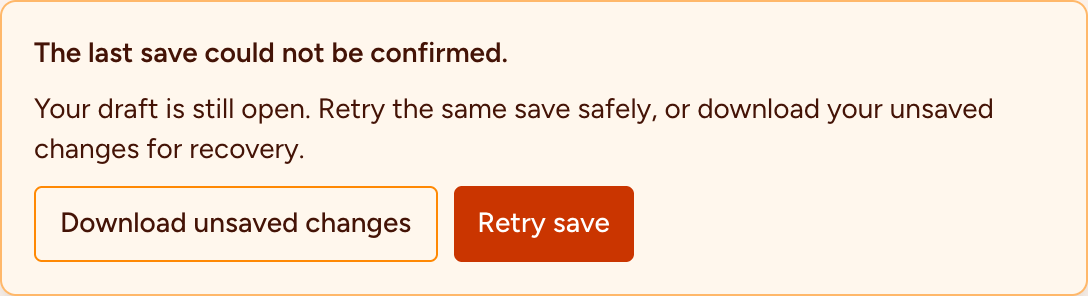
Protect unsaved work and resolve an event save warning.
Retry a failed background without reloading your drawing
A failed background-map layer is retried without reloading the plan or replacing its drawing layers. If the attempt needs help, choose Retry background map. PDF export also keeps the editor's background separate from the export so you can continue working after the download.
Wait for the roads or aerial image to return before drawing or starting another PDF. Save pending work before a manual page reload.
Restore the background map and understand the recovery messages.