
This page gets you a PDF that downloads and shows your drawing.
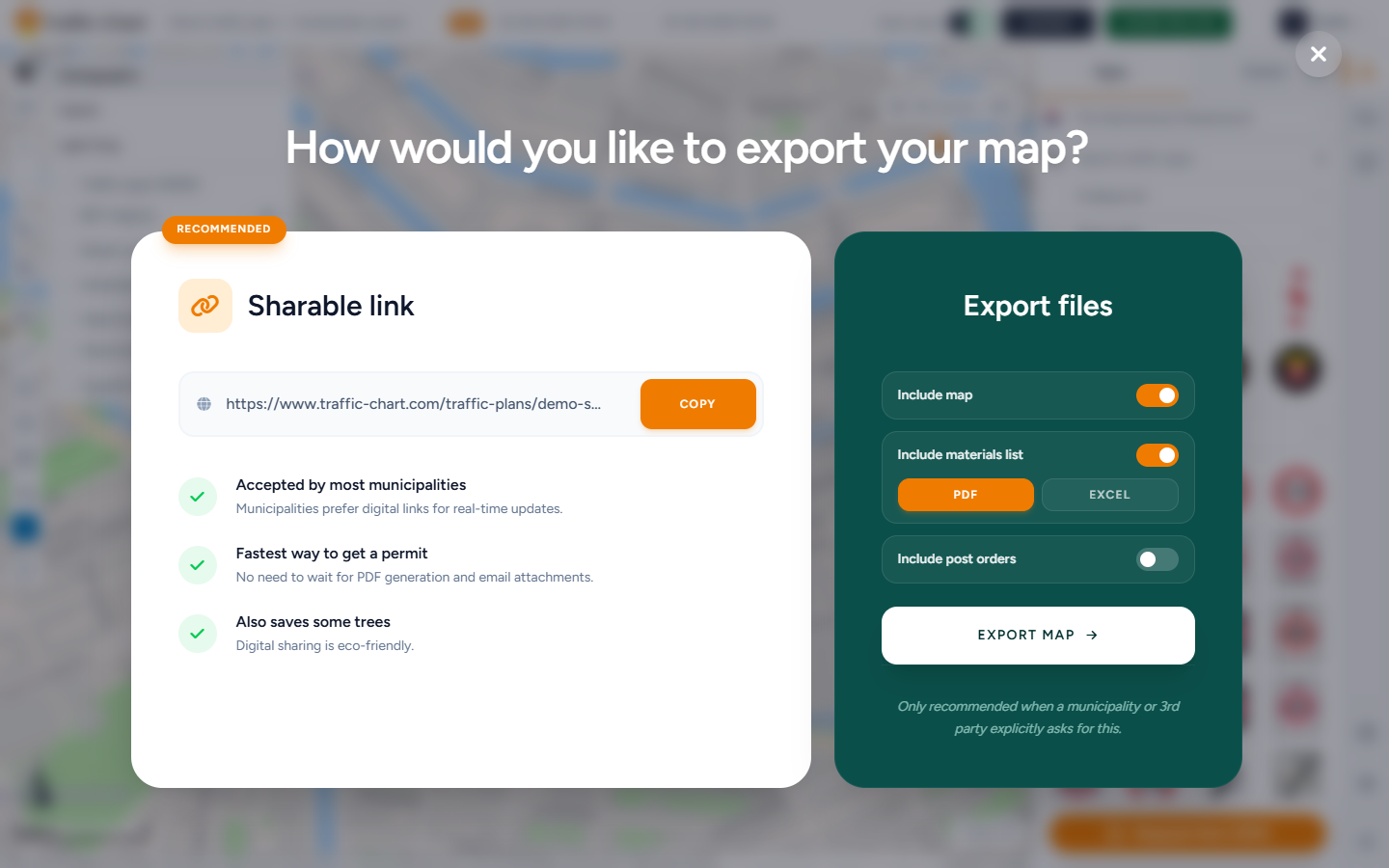
Use it when Export now or Export PDF fails, the file is empty, or pages miss signs. Map pages need an export rectangle. A traffic PDF containing only the legend or materials does not need map pages.
Checklist
- Check the export you need. Shared traffic and event plans allow PDF downloads without login. Excel and sending Export Feedback need login; sign in if those paths ask for it.
- For map pages, draw at least one export rectangle:
- Traffic plan: Export → How would you like to export your map? → Continue to export. Draw new map → Detail (or XL if your account allows it). Empty: No export maps yet. Disabled export: Add at least one export map to enable export.
- Event plan: Export, then Add area. Empty state: Draw an export area, then choose the paper size for the PDF page.
- Set Paper size and Change orientation for that map.
- Tick the extras you need: Map pages, Include legend, Materials list, Post instructions.
- Click Export now (traffic) or Export PDF (event). Stay on the page until Download started or the file appears. Do not close the tab. A traffic export that hangs, or that you started with the wrong maps, can be cancelled: click Stop export, confirm Stop export, wait for Export stopped, then run it again.
- Use a current desktop Chrome, Edge, or Firefox. Allow downloads for this site.
- Turn off ad blockers, or try a private window.
For a legend-only traffic PDF, turn off Map pages, leave Include legend on and check that the saved legend has entries. A read-only viewer can choose the legend for their own export without changing the plan. Event PDFs still need a sized export area. Traffic plan legend and Export an event plan.
XL maps and Download Excel / Materials Excel need Pro or organization permission. You may see XL maps require a PRO account. or This is a pro feature. Excel also needs login (Log in and save the plan before exporting Excel.) and a rectangle (Create an export map first.). Paying for unlimited signs on one plan does not unlock them. Feature not available for my account.
Watch the export stages
The overlay title is Export traffic plan. Headers move through:
| Stage | Meaning |
|---|---|
| Creating export | Work has started |
| Capturing the page image | Map page is being snapped |
| Adding materials list | Extra Materials list pages |
| Adding post instructions | Extra Post orders pages |
| Creating Excel | Materials Excel |
| Finishing export | File is assembling |
| Starting download / Download ready | Browser should prompt |
| Download started | Your export is ready and the PDF download has started. / Your download has started. |
Row statuses include Queued, Finished, Failed. Detail lines include Preparing your document, Preparing this page, Sizing the page, Positioning the map, Scaling signs and drawings, Waiting for map layers, Preparing bulk signs, Placing the page image, Adding the page header, Adding the scale and labels, Saving this page, Finalizing this export.
Slow network: This is taking longer than usual. A slow network connection can delay map tiles and layers. Please keep this window open while the export finishes.
Degraded: Some map layers took longer than expected to load. The export may be incomplete; please check the PDF before using it. Open every page anyway.
Hard fail header: Export failed. Message: Something went wrong while creating your export.
Event stages can read Preparing export through PDF exported successfully. Keep that tab open the same way.
Export Feedback
After a run, the app may ask How did the export go? The form title is Export Feedback.
- Not logged in: Export failed. Please make sure you're logged in.
- Logged in: Logged in, but still experiencing issues or have other feedback? Body: Please fill in the form below and we will make sure you get your export emailed to you within 24 hours. Placeholder: Please enter your feedback here... Send feedback. Success: Feedback sent successfully. Thank you! / Feedback sent. Fail: Failed to send feedback. Please try again. Log in to send export feedback. if the session dropped.
Blank or incomplete PDF
- Keep required signs and objects inside the selection. In a traffic plan, use Split across sheets for a larger detailed area, or XL for one overview if available. An export containing a sheet layout is limited to 100 map pages. Reduce the area, choose larger paper or select fewer maps if necessary.
- Temporarily switch off heavy layers such as MELVIN or Traffic signs (NDW) and export again.
- Sketches print only inside the rectangle. Drawing and measuring.
- Include Materials list and post orders only if you need those extra pages. Empty materials: No materials found. Empty posts: No post orders found.
- For event plans, enlarge the export area so objects are not clipped.
- Do not start a PDF while Opening Map Environment... is still on screen.
- An optional combination-sign thumbnail can be missing on the materials pages even when the PDF downloads. Required signs on the map itself are checked before capture and can stop export if they fail to load. Check every page and retry or contact support if an image is needed for the handover.
If an event save warning blocks export, keep the editor open. Retry save repeats an unconfirmed request. If saving is paused, choose Download unsaved changes before Reload saved plan; repeated saves do not resolve that conflict. Keep the JSON for recovery with support before reloading or closing the draft. Protect an unsaved event drawing.
Larger detail exports and missing map content
If a saved traffic-plan sheet layout is temporarily unavailable, choose Use one sheet when you can edit, or exclude that map from the export. A missing required sign image can stop map export instead of downloading an incomplete map. Wait for loading, retry a smaller export and contact support with the plan link if it persists. Sheet-layout limits and recovery.
What good looks like
The browser downloads a PDF. Map pages show the basemap and your drawings inside the rectangle. Open every page before you send it. Prefer Sharable link (RECOMMENDED) when a live link is enough.
If it still fails
Use Export Feedback when the form appears after a failure. Email customer@traffic-chart.com with the plan link, browser, and time.
Full paths: Export and print traffic plans and Export an event plan. Contact support.
The background map loads slowly
The export gives slow background-map tiles one additional wait before stopping. Keep the export tab open while it waits. If it still cannot capture the map, Export failed can show The map is loading slowly, please try again. Check your internet connection if this keeps happening.
Check the connection, wait for the editor map to finish loading and retry once. Do not start several exports at the same time. This is different from a missing export rectangle or a PDF that downloaded successfully. Export troubleshooting.
If the background fails in the editor, use Retry background map when offered before manually reloading the tab. Keep pending edits safe. A required background or drawing failure can stop PDF creation rather than produce a map with missing content. Restore a missing background.