
Use this page to start an event plan, open it later, and understand the editor. Drawing objects, zones, routes, and labels is a separate lesson: Event objects, areas, and routes.
An event plan is a site layout. It is not the official road-sign catalogue.
When you need this
Use an Event Plan for the venue itself: tents, fencing, visitor flows, emergency exits, camping, parking.
Use a Traffic Plan when you need the traffic-sign catalogue, detours, materials lists, or post orders. Many events need both: event plan for the field, traffic plan for the approach roads.
You do not need this page if you only place road signs. Start with Your first plans instead.
Access and cost
Event plans are not billed in credits. Your workspace still has to allow them.
On Plans, the tabs are Traffic plans and Event plans.
If Event plans are off for this workspace, Event plans is greyed out. The line under the tabs is the access message. In your personal workspace it reads Not enabled for Personal. In an organization it uses that workspace name, for example Not enabled for Acme Events.
That is a workspace gate, not a billing limit. Workspace unavailable.
You cannot create an event plan here until an administrator enables it. Email customer@traffic-chart.com if the wrong workspace is blocked.
If you never see the Event plans tab at all, this account does not include event plans.
A new plan is created in the workspace you are in now. Check Switch workspace first. Personal is your own library. An organization workspace is the shared one.
Create an event plan
From Home:

- Under What would you like to create?, choose Event Plan (Organize venues and event layouts.).
- The form title is Create Event Plan.
- Choose Country * for the actual event location. Check the suggested value: the plan uses this country for its object catalogue, not your account's language or billing address.
- Enter Event Name (placeholder Enter the name of your event).
- Enter Location (placeholder City, venue or address).
- Set Start * and End *. Each side is two controls: Select date (calendar) and hh:mm (clock). Aria names: Select start date, Select start time, Select end date, Select end time. Missing time: Enter a start time. / Complete the start date with a time. (or the end equivalents). The end must be after the start: End date must be after the start date.
- Click Start event planning.
From the library:
- Open Plans.
- Open Event plans.
- Click New Event Plan.
- Fill the same form.
The editor opens full-screen. Wait until the map is ready. Do not place objects during the loading screen.
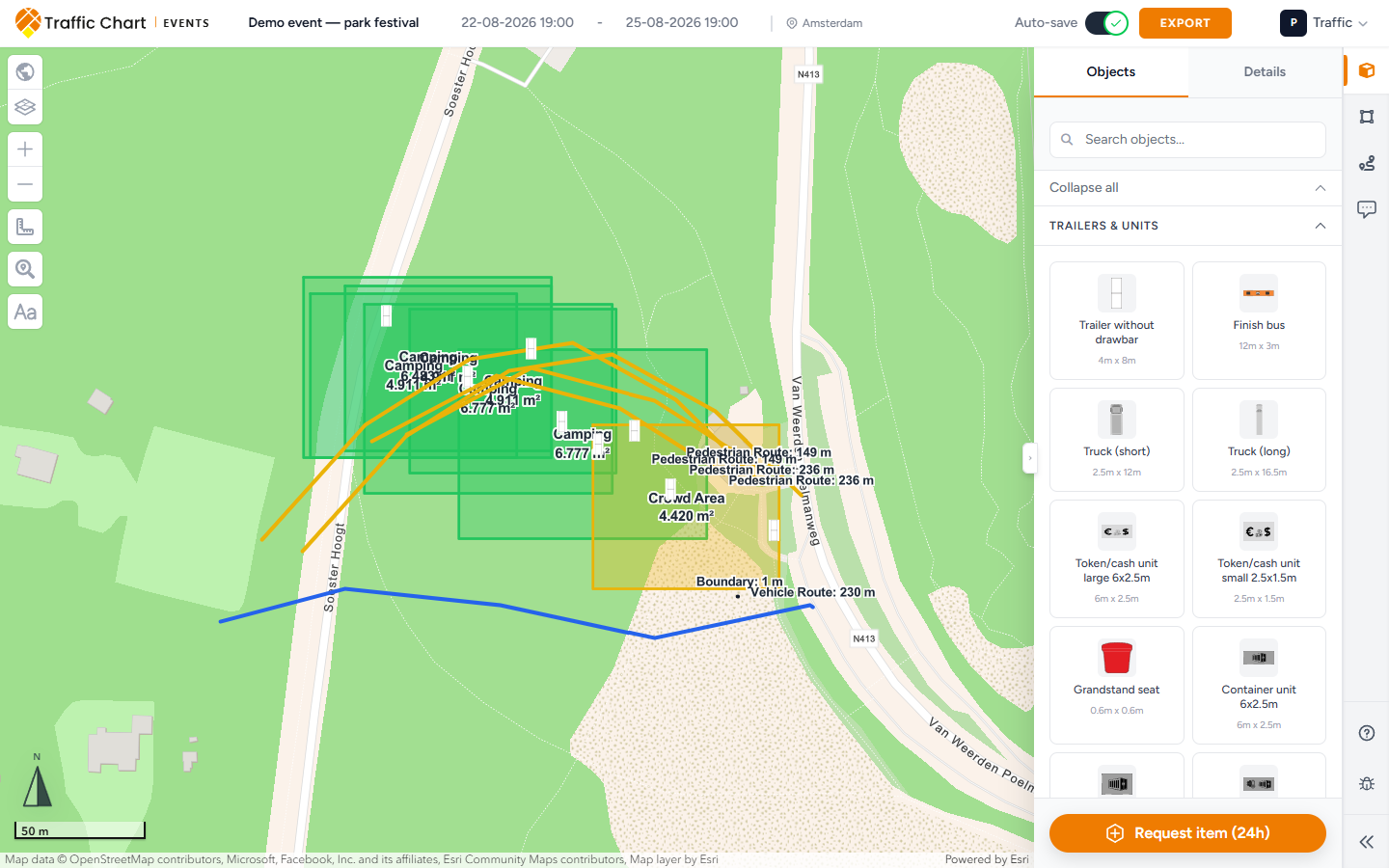
Find a plan later
Plans → Event plans is the library.
Personal title: My event plans. Subtitle: Create and manage your event layout plans. Organization title is the organization name plus event plans, for example Acme Events event plans. Organization subtitle: Event plans shared with everyone who has access to this workspace.
Search with Search. Placeholder: Search event plans or folders. Empty search: No event plans or folders match your search. Empty folder: No event plans or folders here yet. First-time empty copy: No event plans yet. Create your first one!
Table columns: Name, Updated, Event Date, Actions.
Open a row with Open. The plan menu (Actions for that plan) also has Copy link, Move to folder, Duplicate, and Delete. Deleting asks Are you sure you want to delete this event plan? That is permanent.
Use New folder to group work. Personal libraries use Folders. Organization libraries use Shared folders. Folder actions include Rename, Move folder, and delete (the folder must be empty). Go up one level returns to the parent. Full library: Folders and the library. Every event library control, dialog, and message: Find and organise event plans. Sending a plan as a link: Share an event plan.
A plan that is under municipal review cannot move from Personal into an organization. The move dialog title is Under review — move unavailable. Copy is still allowed. See Review for organisers.
The event editor
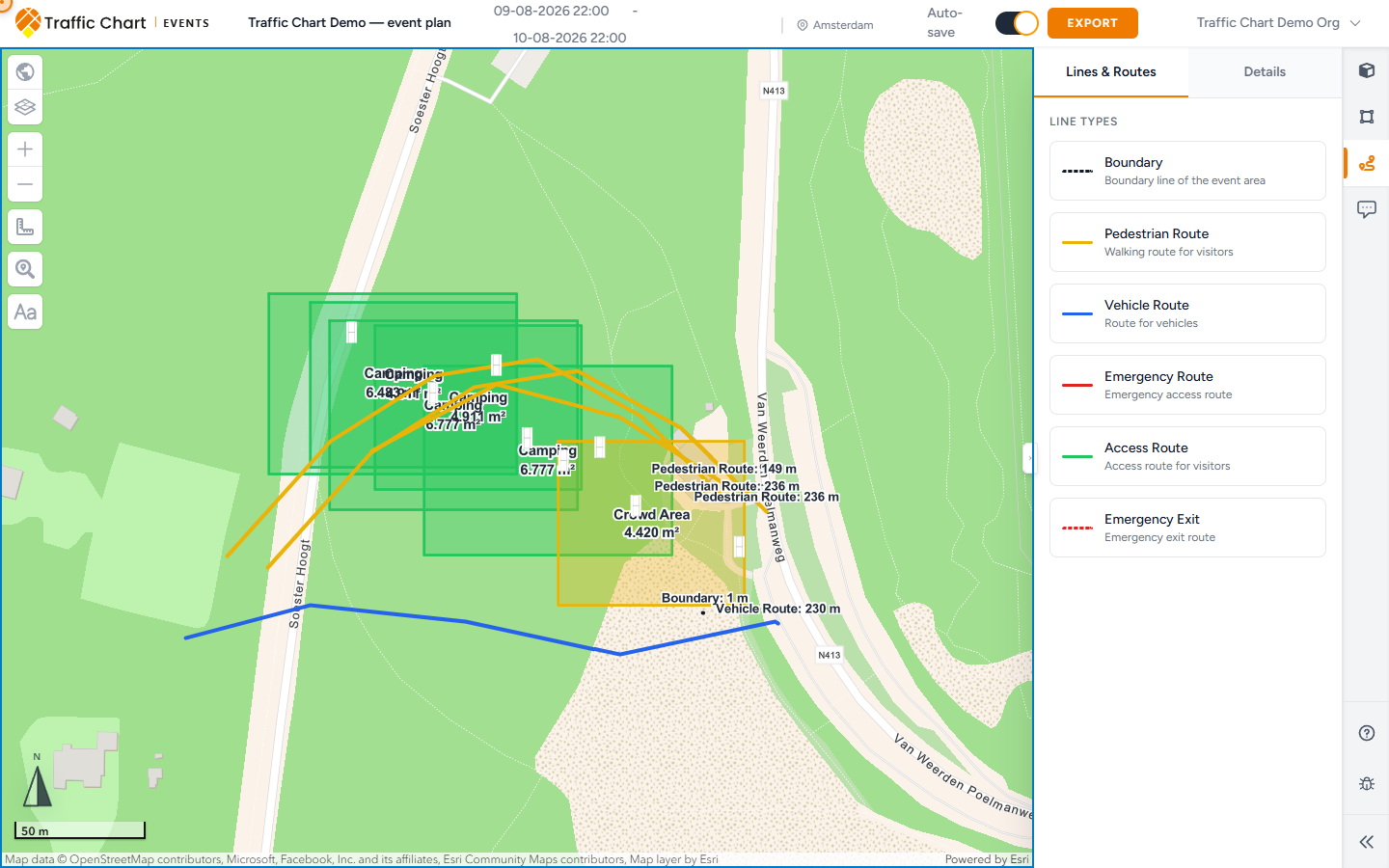
The clip below opens Objects, then Areas (Polygon, Rectangle, Circle, and the area types), then Lines & Routes.
The header shows the event name and a date summary. Select either to open Plan details. The summary may shorten dates on a small screen; the dialog always shows the full values.
The save indicator opens Save options and shows whether edits are pending, saving, saved or failed. When automatic saving is off, a plan has not been saved yet or a save failed, Save is available. Success is Event plan saved; failure is Failed to save event plan. Keep the tab open until saving finishes.
If an event save cannot be confirmed, the editor can offer Retry save and Download unsaved changes. A conflicting version or changed access can pause saving. Download the open draft before choosing Reload saved plan; repeated saves do not resolve a conflict. Protect an unsaved event drawing.
Export is in the desktop header. On smaller editor screens, open the navigation menu to find it. It is separate from the drawing modules. Export an event plan.
Title, dates, and location
Open Plan details to inspect or change the facts used on your shared plan and exports.
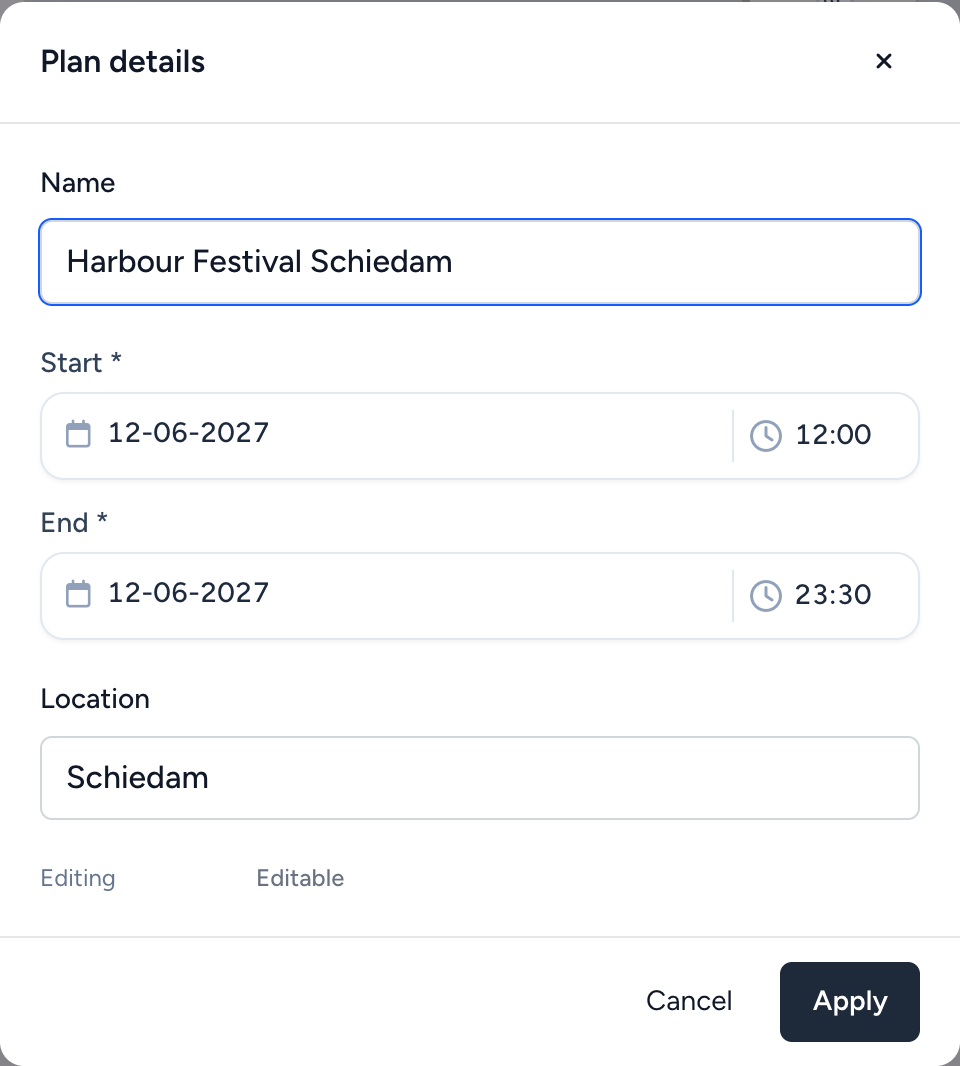
- Event name: up to 80 characters. A plan without a name shows Untitled Event Plan.
- Start and End: both need a date and a time when changing the schedule. The end must follow the start. Date and save controls.
- Location: up to 120 characters. It labels the plan and does not move the map.
Choose Apply to keep the dialog changes, then wait for automatic saving or use Save. Cancel, closing the dialog or Escape discards edits made in the dialog. Read-only and locked plans show their details without editable fields or Apply.
Five modules — and what is not a module
The right-hand strip has five modules when you are signed in:
- Objects
- Areas
- Lines & Routes
- Legend
- Comments
There is no Texts tab. Labels go on the map with Add text (the Aa control on the left). Layers can still list Texts after you place them. That list is not a drawing module.
Legend is the PDF key. Edit it here, then tick Legend on export. Event plan legend.
Comments is municipal Review status. It is not a sticky-note pad. You do not start the first review yourself. Until the municipality starts a session, Comments may show Ready to submit? and tell you to use the municipality procedure, with Copy shareable link and Export plan. Comments and review status.
Each drawing module also has a Details tab. Select something on the map, then open Details. How to place objects, zones, routes, and text: Event objects, areas, and routes. A repeating fence or toilet run is Place a row of event objects (Place objects along a line).
At the bottom of Objects only: Request item (24h). Use it when the catalogue is missing a type. Request a missing item.
The strip also has Help, Report bug, and Collapse.
Select map on the left offers basemaps and, for Dutch plans, NDW Signs, BGT objects, supporting data layers and TopoRD (Netherlands only). Choose Configure BGT objects to select Fire hydrants or other types. Place objects along a line sits with those map tools. Layers groups Event Objects, Event Areas, Lines & Routes, Object rows and Texts. Empty: No items in this layer. Lock entire layer / Unlock entire layer stops accidental edits in that type group. Event map layers.
Inspect a plan you cannot edit
Guests on a share link and municipal reviewers can click anything on an event plan to read its details. Click an object, route, line, or area and Details opens with its dimensions and settings, for example Surface area for an area. Nothing can be changed there. The fields are greyed out, and there are no delete or placement controls.
Before you click, Details says Click an object, route, line or area on the map to inspect its dimensions and settings.
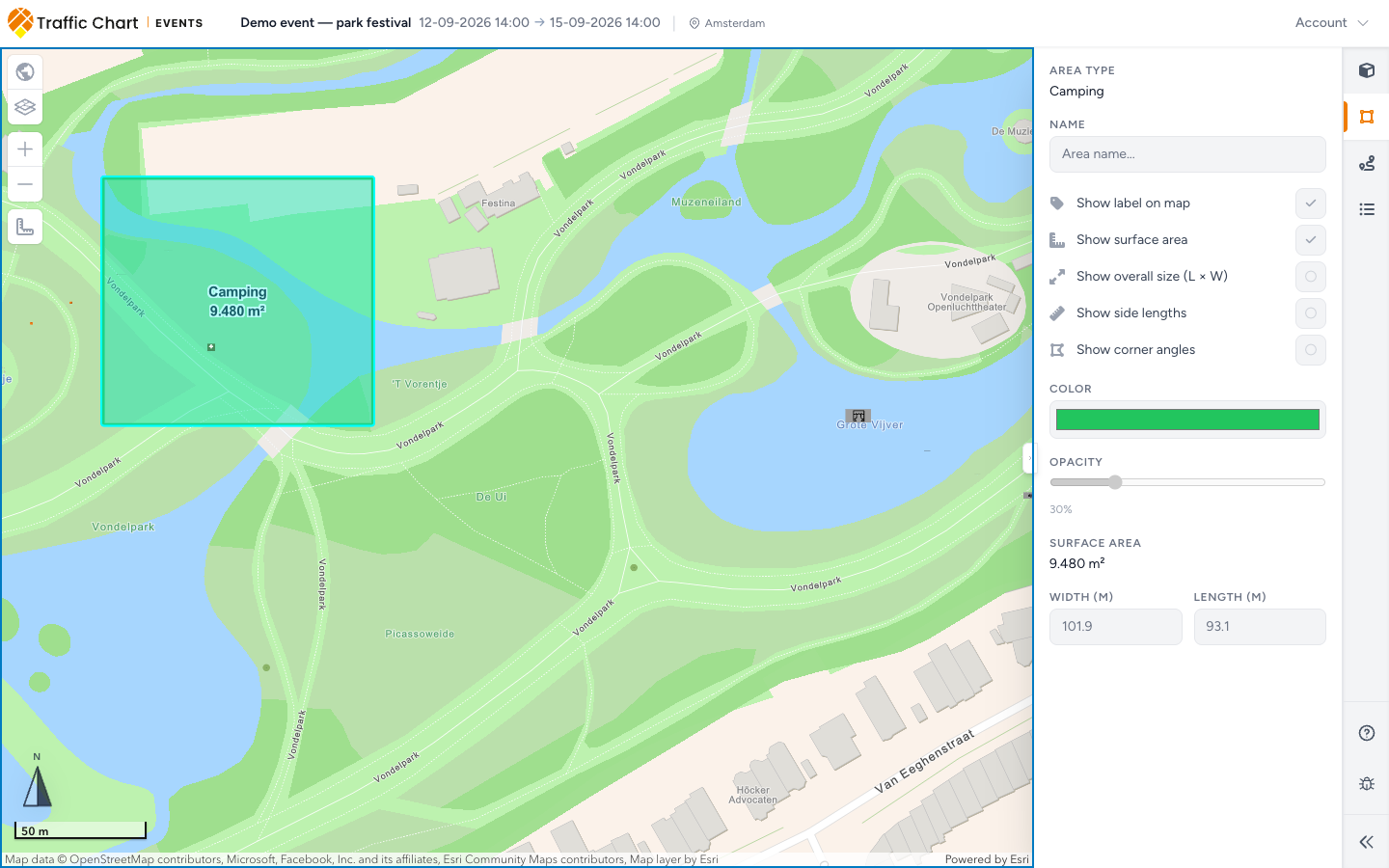
On a plan locked for review, Details shows This plan is locked for review, so these properties cannot be changed. above the fields.
Locks
If the plan is under review, placing and drawing are blocked. The object, area and route modules still open read-only Details, with placement catalogues hidden. The header Save control is hidden while the plan is locked; inspect Plan status to understand the lock.
Open Plan status from the header indicator to inspect Review, Editing and Locked by. On a narrow screen the indicator can show only an icon; the panel and Plan details show the full information. A review result does not remove a separate external or administrative lock. In-app Approved is not a legal permit by itself.
Recorded routes and roadworks
Use Import GPX in the left map tools to bring a recorded walking or cycling route into your event plan. The imported route can be edited under Lines & Routes. Import a GPX route into an event plan.
Dutch event plans also have MELVIN in the header. Set both event dates and times, then turn it on to check roadworks near the site and approach routes. Event map layers.
Visitors on a shared plan can use Export to download a PDF and choose whether it includes the saved legend, without changing the original plan. Share an event plan.
What good looks like
- You created the plan in the intended workspace (Personal or Acme Events).
- Event Name, Location, and dates match the real event.
- You waited for the map before placing anything.
- Site kit is on Objects. Repeating runs use Place objects along a line. Zones are on Areas. Paths are on Lines & Routes. Labels are Add text. Legend lists what should print.
- At least one event object sits on the real site if a municipality will review in the app.
- Save or Auto-save: saved has finished.
If something blocks you
| Situation | Where to go |
|---|---|
| Event plans says Not enabled for Personal. (or Not enabled for Acme Events.) | Workspace unavailable. Ask an administrator, or email customer@traffic-chart.com. Event plans are not billed in credits. |
| Cannot find Texts next to Objects | Expected. Use Add text on the map. |
| Comments looks like review, not notes | Expected. See Review for organisers. |
| Plan will not edit | I can’t open or edit a plan |
| Plan missing from the list | My plan does not appear in the list |
| Need a PDF | Export an event plan |
Safety plan pilot
When your account has the pilot and you may edit this event plan, the right-hand strip also offers Safety plan. Use it to combine drawing facts with your answers and create a draft document. It is separate from the event-map PDF, and the current document template is Dutch. Create a safety plan and Understand the checks.
The plan country and object choice
The event plan's country filters country-specific objects in the catalogue, favorites and object-row picker. Universal objects remain available. Changing country does not remove objects already placed or erase your saved favorites; a hidden favorite reappears when its country applies again. Event objects, areas, and routes.
A new-version message
When the app offers Save and refresh, use it to save the editor before reloading, or choose Later to keep working. If saving fails, keep the page open and retry. Save safely before refreshing.