
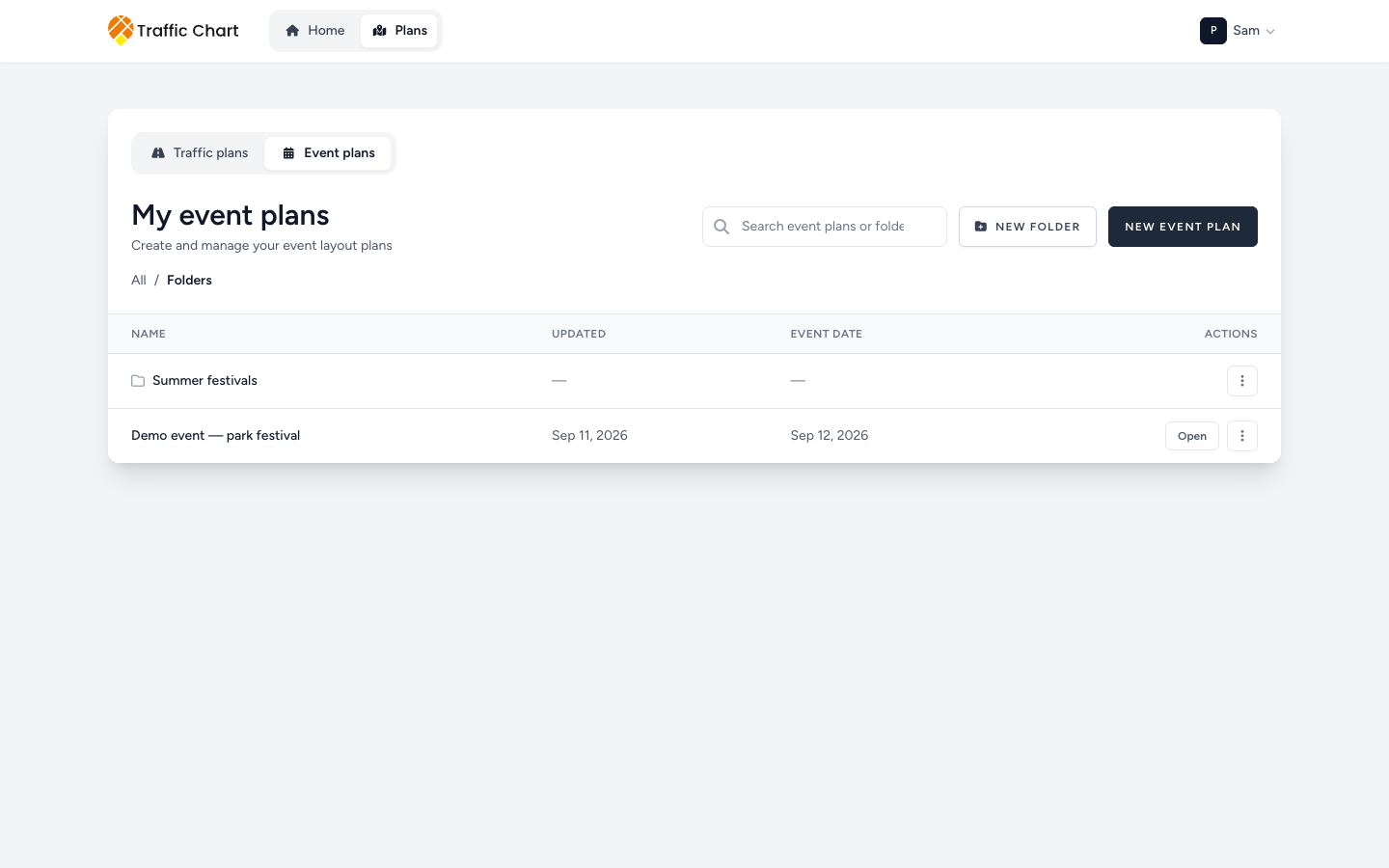
The event plans library is where every event plan in your workspace lives. Use it to find a plan, keep plans in folders, copy a plan for next year, and share a link.
When you need this
Use it when you have more than a handful of events, or when several people in an organization work on the same plans. Skip it while you only have one plan open. The editor is enough for that.
Open the library
Open Plans, then the Event plans tab. Each workspace has its own library, so check Switch workspace first: Personal is your own, an organization workspace is shared with everyone in it.
If the tab says Not enabled for Personal. (or the organization name), event plans are not switched on for that workspace: Workspace unavailable or not enabled.
While it loads: Loading event plans…. If it fails: The event plan library could not be loaded. Refresh the page.
Find a plan
Type in Search (Search event plans or folders). Matches from every folder appear under Search results. Nothing found: No event plans or folders match your search.
The table columns are Name, Updated, Event Date, and Actions. Click Open on a row to open the plan in the editor.
An empty folder says No event plans or folders here yet. A brand-new library says No event plans yet. Create your first one! Start one with New Event Plan: Event plans handbook.
The plan menu
Next to Open, each row has a menu (Actions for the plan name):
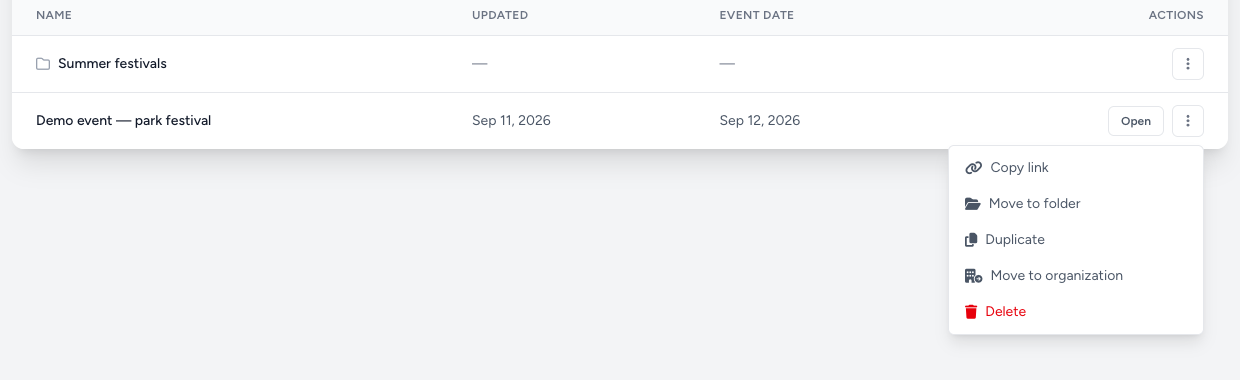
| Action | What it does |
|---|---|
| Copy link | Copies the plan's link: Link copied. How the link behaves: Share an event plan |
| Move to folder | Opens Move event plan: Choose a folder for the plan, then Move. Success: Event plan moved |
| Duplicate | Makes a full copy in the same place: Event plan duplicated. Use it to start next year's edition from this one |
| Move to organization | Personal library only, and only if you belong to an organization: moves the plan into that organization's workspace. Move, copy, and assign an editor |
| Delete | Asks Are you sure you want to delete this event plan? Success: Event plan deleted. This is permanent |
If an action fails, the toast says so: Failed to duplicate event plan, Failed to delete event plan, The event plan could not be moved., or The link could not be copied.
Folders
The trail at the top starts at All, then Folders in a Personal library or Shared folders in an organization, which everyone in the workspace sees. Plans that are not in a folder sit under No folder.
Create a folder
- Click New folder.
- In Create folder, type a Folder name, for example Summer festivals.
- Pick its Location if it belongs inside another folder, then Save. Success: Folder created.
Work with a folder. Open a folder by clicking it. The trail at the top (Event plan folders) shows where you are, and Go up one level takes you back. The folder's own menu has:
- Rename: opens Rename folder. Success: Folder renamed.
- Move folder: opens Move folder, for example Choose a new location for "Summer festivals". Success: Folder moved.
- Delete: asks, for example, Delete "Summer festivals"? A folder must be empty before it can be deleted. Success: Folder deleted.
A folder that still holds plans cannot be deleted: The folder could not be deleted. Move its contents first. If saving a folder fails: The folder could not be saved.
Move a plan between workspaces
Moving a plan from Personal into an organization, or copying it there, works the same way as for traffic plans: Move, copy, and assign an editor. A plan under municipal review cannot move out of Personal, but Copy still works.
What good looks like
- One folder per recurring event or per client, for example Summer festivals.
- Plan names say the event and the year, so search finds them.
- Last year's plan is duplicated, not edited, when the next edition starts.
If something blocks you
| Situation | What to try |
|---|---|
| No Event plans tab, or Not enabled for Personal. | Workspace unavailable or not enabled |
| A plan is missing | Check the workspace in Switch workspace, then search: My plan does not appear in the list |
| The folder could not be deleted. Move its contents first. | Move or delete the plans inside, then delete the folder |
| The event plan library could not be loaded. | Refresh. If it keeps failing: Contact support |