
This page unblocks the next traffic sign when the map will not keep it.
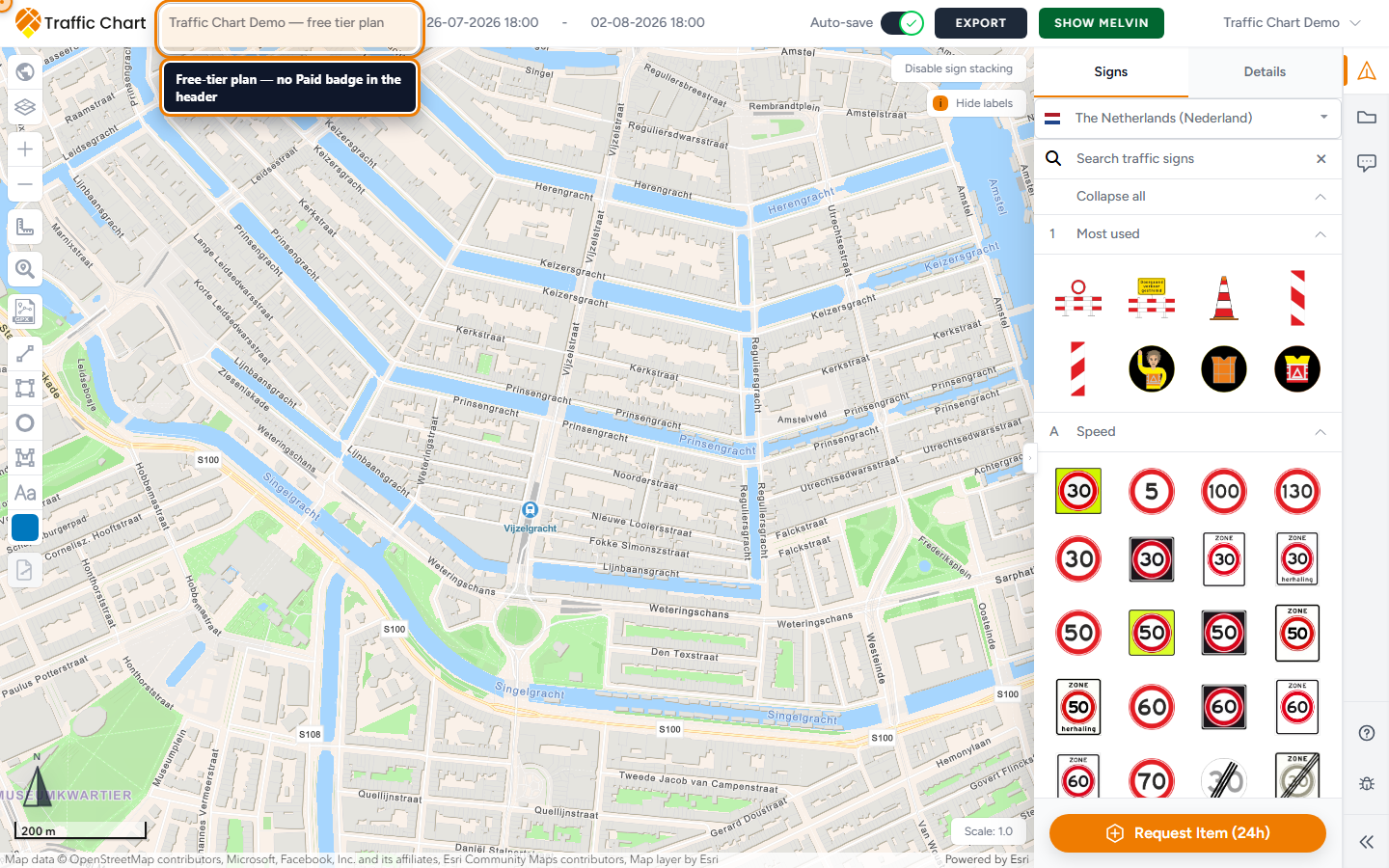
Use it when a click does nothing or a payment dialog appears. Event objects are not billed. Pro feature is a different gate: Feature not available for my account.
Check these first
- Log in. A share link is view-only (Plan is read-only).
- Open the plan from Plans in the workspace that owns it. In an organization, only the assigned editor can place signs. Owners and administrators use Assign editor.
- If the header says Plan is locked while under review, Plan is under review, or This plan is locked because it has been approved, you cannot draw yet.
- Wait until Opening Map Environment... is gone. Do not click on a white map.
Sign limits and payment
Creating a traffic plan is free. Payment is asked when you place signs past the free allowance.
Outside participating municipalities, unpaid plans allow a limited number of signs that count (currently 5). Each plate in a stack counts. Bulk signs can use that allowance in one line.
Duplicate sign is checked the same way. Copy a stack past the allowance and the payment dialog opens. If you close the dialog without paying, the copies over the limit disappear from the map: they were never saved. If you go on to checkout, the copies come back once Payment successful returns you to the plan in the same browser tab.
Dialog titles include Continue drawing with 1 credit, Spend 1 credit to create new plan? (organization credit pool), and Sign limit reached.
Sign limit reached body: You have placed the maximum number of signs. That shorter modal is not checkout. Close it, then use the payment dialog if it follows.
Personal workspace
Title: Continue drawing with 1 credit.
The dialog shows the number of participating municipalities and explains that you can draw in other municipalities too. Up to 5 signs are free; 1 credit unlocks unlimited signs in this plan.
- If you have credits: You have 1 credit available. Use 1 credit to place unlimited signs in this plan. Click Spend credit once. Success: Credit spent. Fail: Could not spend credit.
- If not: Buy 1 credit for the price shown to continue drawing with unlimited signs in this plan. Choose billing country (First select your billing country to proceed to the checkout: / Select a country) and Billing postal / ZIP code, then Checkout, followed by Pay now on the Stripe step. Missing postal: Enter your postal / ZIP code to continue to checkout. Bad pair: Check your billing country and postal code and try again.
- Finish Stripe. Stay on Payment status. Wait for Payment successful, then Open traffic plan. Payment status after checkout.
The credit unlocks this plan even if the municipality does not participate. Municipality participation is not required to continue drawing with a credit.
Guest past the cap: Log in & Pay or Register & Pay. Log in to proceed to checkout and remove limitations. / Register to proceed to checkout and remove limitations.
Organization workspace
Credits in the dialog are the workspace pool. Title often Spend 1 credit to create new plan? Body: By clicking 'spend credit' we will automatically deduct one credit from your account, and create a new traffic plan for you. You have 3 credits left. (the count the app prints).
- If the pool has credits and you can edit: Spend credit.
- If billing is missing: Billing is not configured for this organization. Ask an organization administrator or Traffic Chart support to configure it.
- Members cannot buy credits: Only an organization owner, administrator, or billing account holder can purchase credits. Ask them to add credits to this workspace.
- Stale billing account: The organization billing account changed. No credit was spent. Reload the plan and try again.
- An owner who is not the assigned editor cannot check out on a colleague’s plan. Reassign the editor, or pay from a plan you can edit.
Organization way out: Cancel. Do not email the municipality from this dialog.
A credit or card payment unlocks this plan’s sign cap. It does not turn on Bulk signs, XL, Materials Excel, Displace sign stack, or PDF preview.
Full rules: Billing, free use, and credits. Dialog walkthrough: Pay or spend a credit.
What good looks like
The sign stays on the map. Save or Auto-save finishes. You can place the next one past five plates on an unlocked plan.
If it still fails
Could not check sign placement means the server check failed. After Duplicate sign, the copy is removed when this appears. Wait and retry. Do not start a second payment.
Payment could not be initialized. Please try again. Close the dialog, refresh, retry once.
Do not pay a second time if Stripe already charged you. See Payment succeeded but plan not unlocked.
Email customer@traffic-chart.com with the plan link. Contact support.