
Traffic Chart is free to try. Event plans are not billed. Traffic plans start on a free tier; when you need more capacity you unlock that plan with a credit or a card payment — or you draw inside a participating municipality.
Prices always appear in the app at checkout. They can depend on country and currency. This page does not list amounts.
For the payment dialog and personal payment status, see Pay or spend a credit. For your team's existing credits and billing arrangements, see Organization billing.
What is free
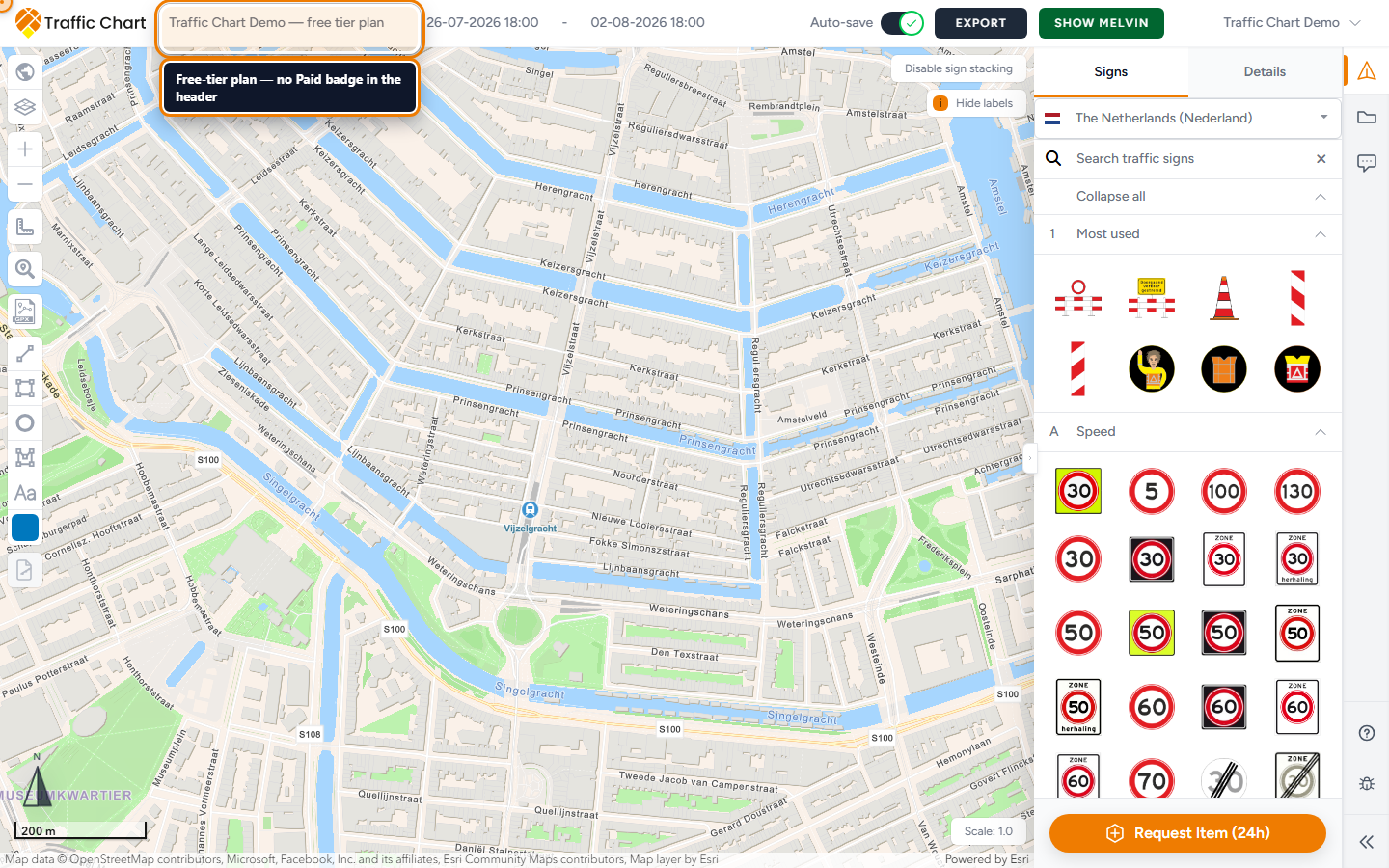
Creating a traffic plan is free. Payment is asked when you place signs past the free allowance, not when you click Start planning.
Event plans do not use credits. They can still be turned off for a workspace. The Event plans tab then reads Not enabled for Personal. (or Not enabled for Acme Events.). Workspace unavailable.
A public share link is view-only. Viewers are not asked to pay.
Participating municipalities
Some municipalities license Traffic Chart so organisers can draw freely there.
- Placement looks up the municipality under the pin.
- If the area is participating, eligible personal accounts can place unlimited signs there without paying for that placement.
- If not, the free sign limit applies until the plan is unlocked.
You can also create a traffic plan outside participating municipalities. The personal payment dialog is titled Continue drawing with 1 credit. It shows the number of participating municipalities, explains the free sign allowance for the municipality under the pin, and offers one credit for unlimited signs in this plan.
Organization credit-pool workspaces use their shared balance instead. The title can be Spend 1 credit to create new plan?, with Spend credit and Cancel. Pay or spend a credit.
Free sign limit (the 5-sign rule)
Outside participating areas, unpaid traffic plans allow a limited number of signs that count toward the cap. That number is currently 5.
Count every plate. A stack of three plates is three toward the five, not one pin. Bulk signs can use the whole allowance in one line.
The sixth counting sign is when the payment dialog appears. Until then, keep drawing.
Organization credit-pool workspaces use their existing shared balance. Read the dialog before choosing Spend credit. If no shared credit is available, ask an owner or administrator to contact Traffic Chart.
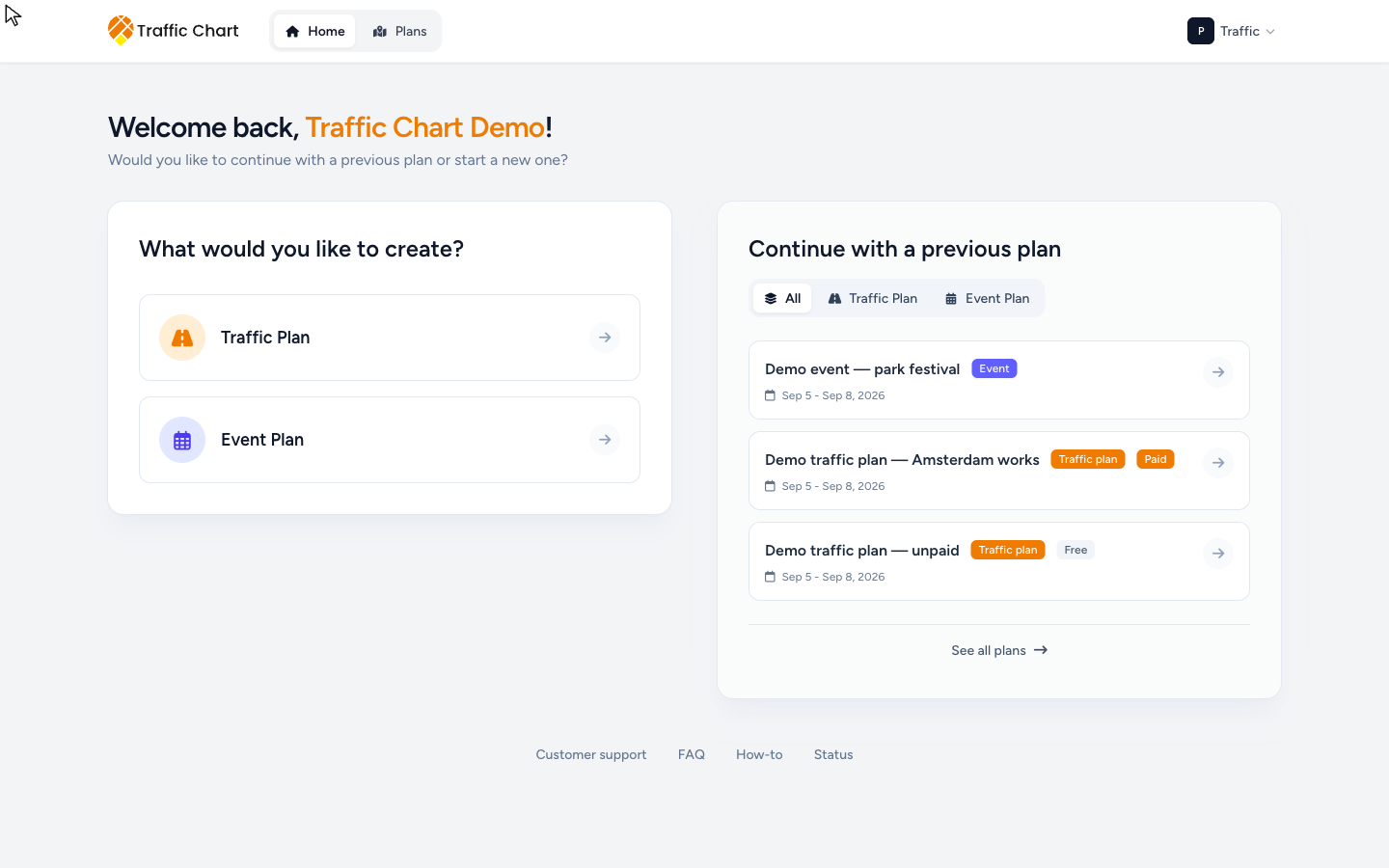
Duplicating a paid plan starts a new unpaid plan. Demo traffic plan with a Paid badge, duplicated, is a new plan that must be unlocked again.
Unlocking a traffic plan (Paid vs organization funding)
Paying or spending a credit sets this traffic plan to unlimited signs. Other unpaid plans keep their own limits. A credit unlocks one traffic plan, not every plan on the account.
Personal / older accounts: the Paid badge
In the personal and older flows you will see a Paid badge on that plan on Home and Plans. That badge means Demo traffic plan has unlimited signs. It is not a Pro licence. It is not organization membership.
Personal workspace
When placement is blocked you see the payment dialog. Full walkthrough: Pay or spend a credit.
In short:
- If you have credits — Spend credit. The plan is saved and unlocked. Toast Credit spent.
- If you have none — Select a country, then Billing postal / ZIP code, then Checkout / Pay now (or Log in & Pay / Register & Pay if you were a guest).
- Complete Stripe. Payment status confirms the credit and unlocks the plan.
Personal credits also appear under Settings → Credits, except for some organisation-role accounts that hide that block on purpose.
After you pay
| Screen | Meaning | What to do |
|---|---|---|
| Confirming your payment | The return and payment status are being verified; this screen alone does not confirm a charge | Wait; keep the tab open |
| Payment successful | Plan ready | Open traffic plan |
| Payment received, confirmation pending | Payment verification is not finished | Wait; do not pay again; Check again |
| Payment failed | Check the payment outcome before retrying | Retry only after confirmed failure; if you have a receipt, see a charge or are unsure, contact support first |
| Plan unavailable | Plan missing; credit may remain | Check personal Credits or ask the organization owner; contact support |
| Could not apply automatically | Payment OK, unlock failed | Contact support before paying again |
See Payment status after checkout, Payment succeeded but plan not unlocked, and the outcome-by-outcome table in Pay or spend a credit.
Paying does not unlock every tool
Unlimited signs on one plan is not the same as organization/PRO tools:
- Bulk signs
- Displace sign stack
- XL export maps
- Materials Excel
- PDF preview
Those show Pro feature (or similar) when your account cannot use them. Feature not available for my account.
Practical tips
- Prefer one browser tab for checkout.
- Never start a second payment while the first is still processing.
- Switch workspace before you pay. A Personal payment does not fund Acme Events traffic plans.
- For sign limits while drawing, see I can’t place more signs.