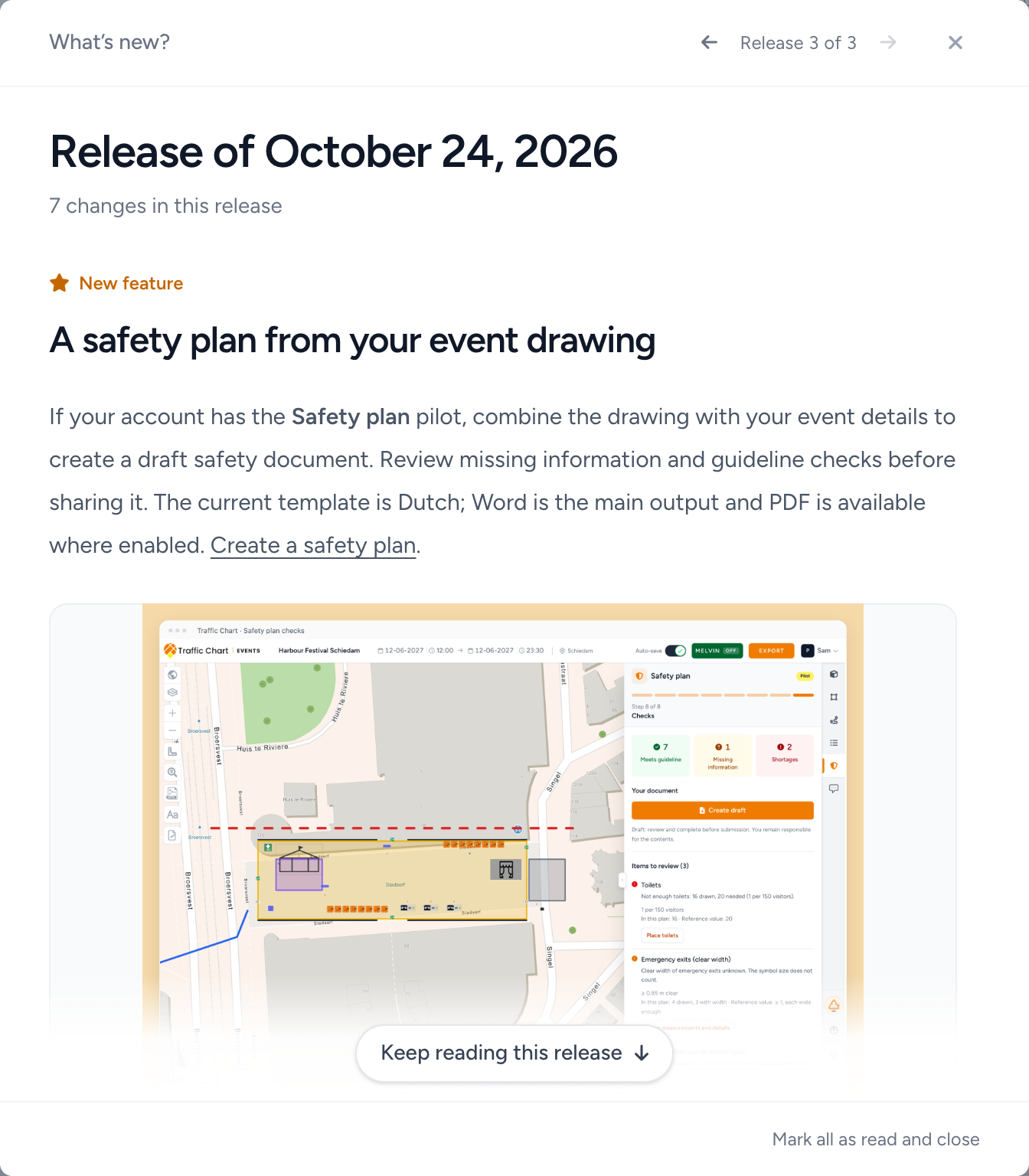
This page is where help lives inside Traffic Chart: the editor Help menu, the tutorial video and the Home footer. Use it when you need the next click, not a full chapter.

If you already know the button you want, go to Frequently asked questions or Contact support.
Help in the editor
Open a traffic plan or event plan. The right strip ends with its support rows:
- Chat with Charly (only on accounts where support chat is switched on)
- Help
- Report bug
Click Help. The dialog title is Help. The text is Need a hand with Traffic Chart? Watch our instruction video and check the FAQ. Still have questions? Contact support.
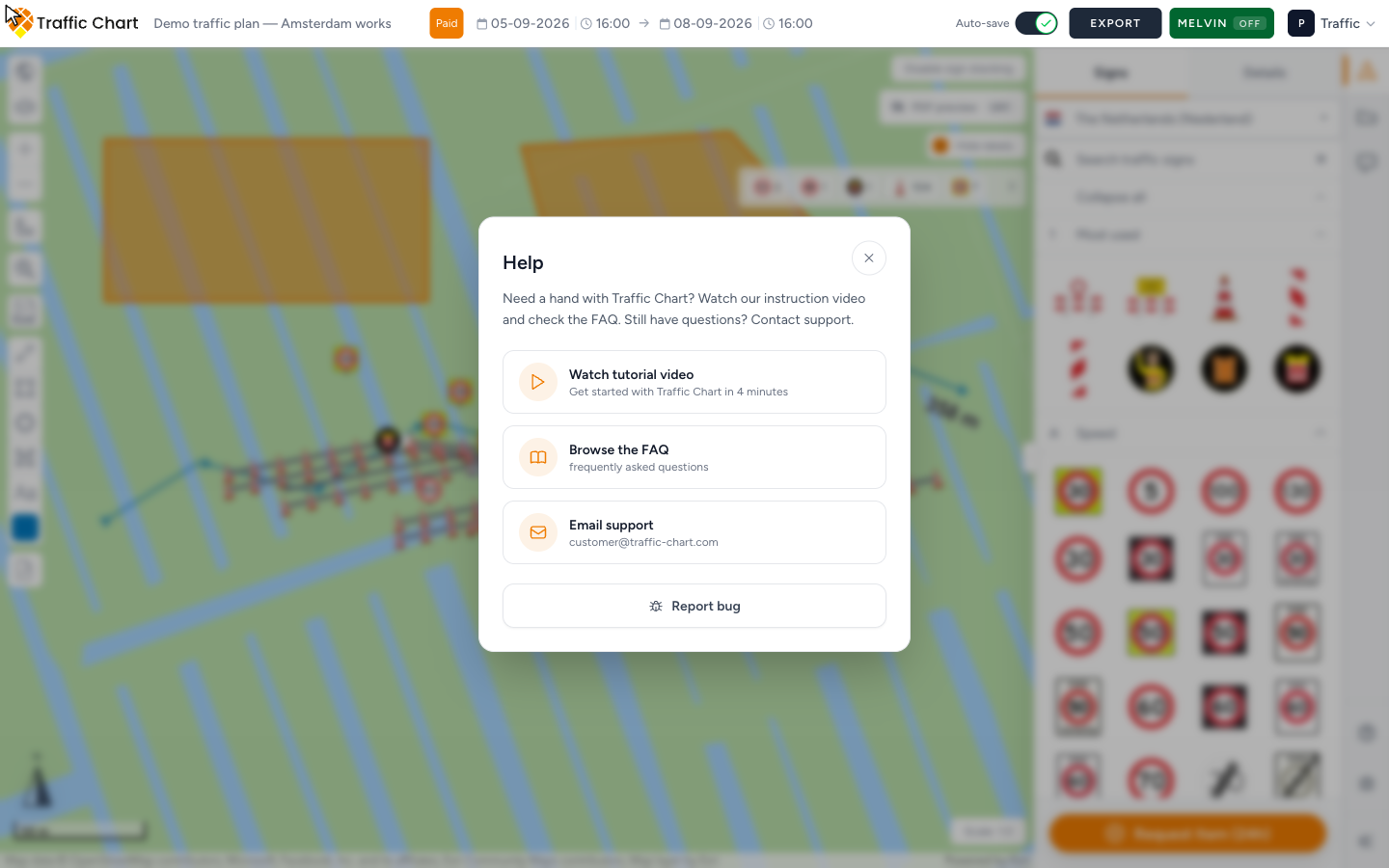
A traffic plan has the four actions below, plus chat when enabled. Event-plan help offers the FAQ, email and bug-report actions, plus chat when enabled; it has no tutorial-video action.
| Control | Subtitle | What it does |
|---|---|---|
| Watch tutorial video | Get started with Traffic Chart in 4 minutes | Opens the tutorial in an editable traffic plan |
| Browse the FAQ | frequently asked questions | Opens FAQ in a new tab (same destination as FAQ on Home) |
| Email support | customer@traffic-chart.com | Starts an email to support |
| Report bug | — | Opens a short in-app form so you can describe what broke |
Close with the X. The name is Close help.
Report bug is also the last row in the strip, so you can skip the Help dialog when you already know it is a defect.
Chat with Charly
Support chat is available to signed-in personal and organization customers when enabled. A municipality reviewer or event-plan access alone may not include it. You do not need to buy a credit to contact support.
Choose Chat with Charly in the right-hand strip or the help dialog. Charly is Your AI assistant and answers from the knowledge base first. Ask for a person in the conversation if needed.
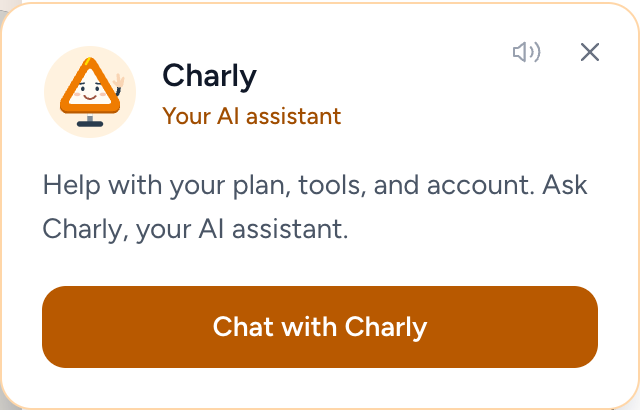
The first introduction card disappears after about 15 seconds when you are not interacting with it. Hover or focus the launcher to find help again. Use Escape or the close control to dismiss the card.
An unread badge and a compact preview draw attention to a public support reply. The preview distinguishes Charly from a human sender. Open the conversation to read the full reply. Reading it in another open tab updates the unread state.
Use Mute reply notifications in the card header to silence notifications, or Turn on reply sounds when chat is closed to enable sounds again. A browser can require interaction before audio can play.
While connecting, the button says Opening chat.... If connection fails, use Try again or Email support. You can keep working while it connects. A missing chat button is an access issue: use email if your customer account still cannot see it.
Public visitors opening a share link do not get the editor's support controls.
Open the tutorial video
In an editable traffic plan, choose Help → Watch tutorial video. It opens a YouTube video in the app (How to use Traffic Chart video / How to video tutorial). Close with Close how-to video. The action describes it as Get started with Traffic Chart in 4 minutes.
The traffic-plan tutorial player is unavailable in a read-only or locked editor. To watch it outside an editable plan, use How-to in the Home footer. There is no separate How to? button in the current editor header.
On Home, How-to opens the same video. Event-plan help has no video action; return to Home to open it.
The video opens when you choose one of those actions. It does not automatically open on your first editor visit.
The player is a YouTube embed and uses the same video in every app language. If the frame is blank, an ad blocker or a cookie banner may be blocking YouTube. Allow the player for this site, then try Watch tutorial video again. If YouTube reports that the video is unavailable, close it, open Help, then choose Browse the FAQ or Email support.
Home footer
After login, Home (Welcome back, your name) has four footer links:
| Label | Where it goes |
|---|---|
| Customer support | The public contact page (you can also mail customer@traffic-chart.com) |
| FAQ | Frequently asked questions |
| How-to | The tutorial video above |
| Status | status.traffic-chart.com — incidents and uptime |
The same four labels appear on the Continue your traffic plan dates screen if an older plan still needs Country, Plan name, or dates before the editor opens.
Status is for outages. If the map is only blank on your machine, start with Map will not load or stays blank.
What to put in an email
Email support is enough when FAQ and the video do not cover it. Write from the account address, and include:
- Workspace name — Personal, or the organization you were in, for example Acme Events (from Switch workspace)
- Plan URL from the browser address bar
- A screenshot of the dialog, lock, or error
- Browser and device (for example Chrome on Windows)
- What you clicked, and what you expected
Do not pay a second time while you wait on a payment issue. Full checklist: Contact support.
What good looks like
You can find Help without leaving the map. The tutorial plays when you ask for it, and it stays out of the way after you close it. A share-link viewer never gets the onboarding video.
The first time you create an account, onboarding is a separate path (Creating your account..., Check your inbox). That is First login and onboarding, not this Help dialog.
Comments on the right strip is municipal review, not this support menu. Comments and review status. Missing catalogue types use Request Item (24h) / Request item (24h) in the drawing sidebar, not Report bug. Request a missing item.
Product updates
Choose What’s new? in your profile menu or the editor's right-hand strip to read features, improvements and fixes. On a compact editor screen, the navigation menu includes the same action. A dot marks unread updates; they open only when you choose the action. Read product updates.