The traffic and event editors keep the plan title and date summary together. Select that summary to open Plan details. Use the save indicator for Save options and the current save status.
Use this page to rename a plan, change dates and times, understand Paid, or check whether your last edit was saved. You need editing rights to change plan details or save. Read-only viewers can open the details to inspect them.

Change the title and schedule
- Select the title or date summary in the header. Plan details opens.
- Edit Project title for a traffic plan, or the name of the event plan. Traffic titles allow 50 characters; event names allow 80.
- Set Start and End, each with a date and a time. In an event plan you can also edit Location, up to 120 characters. Changing this label does not move the map.
- Choose Apply to keep the changes, then wait for saving or use Save if automatic saving is off.
- Choose Cancel, the close button, Escape or the area outside the panel to discard changes made in this dialog.
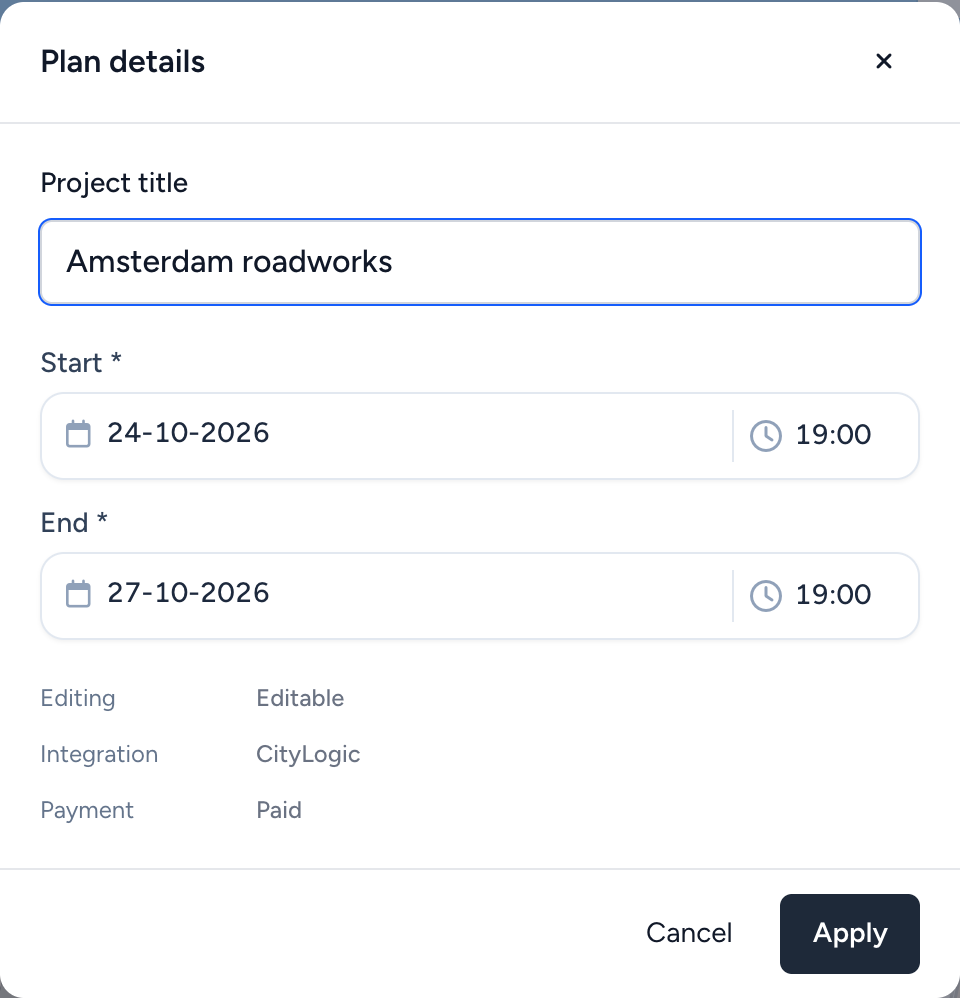
Apply updates the plan in the editor. It does not replace waiting for the plan to save. Changing only the title of an older undated plan does not require you to fill its schedule; changing the schedule does require a complete valid range.
On small screens, the date summary can omit times or the current year. Open Plan details to inspect the full dates and times. The panel opens from the bottom on a phone. Read-only plans show their details without editable fields or Apply.
Find the other controls
The logo opens Plans for the current workspace. A status control before the title brings together review, editing, lock, integration and payment information when relevant. Select it for Plan status, or open Plan details to read the same status information.
On desktop, Export and the Netherlands-only Melvin control sit in the header. On smaller editor screens, open the navigation menu to find them. The full-screen menu also holds workspace, language, settings and navigation actions. Close it with its close control or Escape to return to the map.
Paid
Paid in Plan status (and on the Plans row) means unlimited traffic signs on this plan. It can appear directly in the header when no review, lock or integration status takes priority. A review badge does not mean the plan lost its paid status: check Payment in the panel.
It does not unlock every plan you own. It does not turn on Pro tools such as PDF preview. Event plans do not use this badge.
How a plan becomes Paid (participating municipality, credit, or checkout): Billing, free use, and credits. This page does not quote a price.
Duplicate does not copy Paid. Copy into an organization also starts the organization plan unpaid.
Read plan status
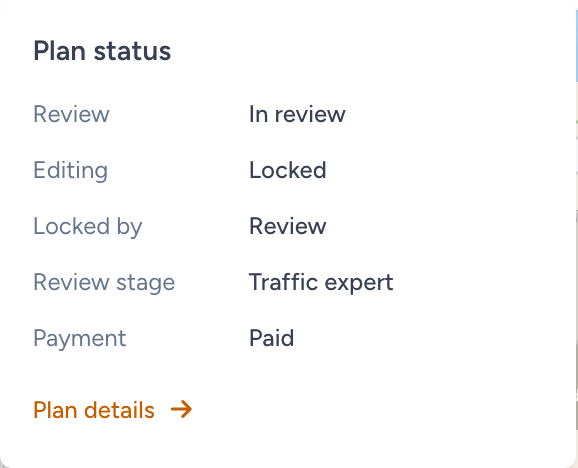
Select the status control before the plan title when it is shown. Plan status explains the current state without changing it. The same information appears inside Plan details, including on a phone where header badges may show only icons.
| Row | Meaning |
|---|---|
| Review | The current review state, when the plan has one. |
| Editing | Whether this view is Editable, Read-only or Locked. |
| Locked by | The active lock sources: Review, External integration, Administrator, or the named integration when you can see it. More than one source can apply. |
| Review stage | The current review team while a submitted plan is being handled. |
| Feedback | Feedback is being processed means the decision has not yet reached the plan owner. The plan still shows its submitted state. |
| Integration | Linked systems visible to your signed-in account when you can manage this plan's review. Anonymous share visitors do not see provider details. |
| Payment | Paid for a paid traffic plan. Event plans do not have this payment row. |
Only relevant rows appear. An ordinary editable, unpaid plan may have no header status control. A link icon alone does not mean a plan is locked. Opening the panel does not grant editing rights or remove any lock.
Choose Plan details at the bottom to inspect the title and schedule. Press Escape or click outside the status panel to close it. In-app approval is a review outcome, not a legal permit.
Start and End (date and time)
Start and End are each two controls: a date and a time. A date without a time is not complete.
On Create a new plan (and Create Event Plan) the visible labels are Start * and End *. Placeholders: Select date and hh:mm. Aria:
- Select start date / Select start time
- Select end date / Select end time
After you pick values, the date buttons become Change start date / Change end date (with the current date) and the times Change start time / Change end time.
After creation, these four controls live inside Plan details. The compact header shows a summary rather than four editable fields.
Missing pieces:
- Select a start date. / Select an end date.
- Enter a start time. / Enter an end time.
- Complete the start date with a time. / Complete the end date with a time.
Range errors: Start must be before end. On event create, End date must be after the start date. Invalid clock: Enter a valid time (hh:mm).
Default times when you pick from the calendar: start 00:00, end 23:59. You can change them. When you type a time, the check button in the time picker (Confirm time) applies it.
On the Continue your traffic plan wall, a missing time stops you with Enter the start and end time of the plan.
Dates appear on exports. They also gate the MELVIN control. Until both sides have a date and a time, that control stays off with Fill in a date to use this option. Melvin itself: Map layers and Melvin.
After creation, reopen Plan details to change the four controls, then choose Apply. You do not re-run Start planning.
On Plans, a row without dates shows No scheduled dates yet. One-sided rows show Starts or Ends.
Automatic saving and the save indicator
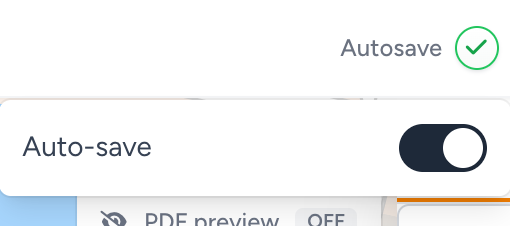
On an editable plan, the header shows Autosave with a status indicator on a wide screen. A phone shows the indicator without that text. Hover or focus it to read the status. Select it to open Save options, then use the Auto-save preference inside the menu.
Read-only and locked views hide the header's save controls. Open Plan status to check Editing and Locked by; resolve editing access or the lock before trying to save.
| Status | Meaning |
|---|---|
| Auto-save: saving | A save is in progress. Wait before closing. |
| Auto-save: unsaved changes | Edits have not finished saving. |
| Auto-save: saved | The current edits are saved. |
| Auto-save is disabled | Save manually. |
| Save failed | Keep the tab open and retry with Save. |
The indicator spins during a save, shows an amber ring for pending changes and a green check when saved. A failure has a red indicator. These are status cues; use the text to confirm the state.
The automatic-saving preference belongs to your account and is shared by traffic and event plans. Enabling it with pending edits starts a save. A preference failure shows Could not update auto-save preference: the change did not stick. Save manually if needed.
Work in one tab per plan. Wait for Auto-save: saved before closing, refreshing or sending a link. Two tabs do not merge simultaneous edits.
Save manually or retry
With automatic saving off, Save appears beside a separate Save options arrow. A new unsaved plan also offers manual save. After a save failure, Save is available to retry even when automatic saving is on. If an event recovery warning appears, follow the event steps below instead of repeatedly saving.
- Choose Save once.
- Wait while it reads Saving....
- Confirm Saved traffic plan for a traffic plan, or Event plan saved for an event plan.
- If it fails, keep the editor open. Check the connection and retry. Traffic failure: Could not save traffic plan. Event failure: Failed to save event plan.
On a normally saved plan with automatic saving enabled, the status/menu indicator takes the place of the separate manual button.
Locked while you were drawing
In a traffic plan, if a reviewer locks it during your session, save cannot keep your last edits.
The toast concatenates the lock sentence with a reload sentence, for example:
Plan is locked while under review Your latest changes could not be saved. Reloading the latest version...
The traffic map reloads the stored version. Local unsaved work is gone. You cannot save while the review lock applies. Open Plan status to inspect Editing and Locked by.
Approved plans: This plan is locked because it has been approved / Plan approved. In-app Approved is not a legal permit. It does mean this drawing stays frozen in Traffic Chart.
Read-only (share link, or you are not the assigned editor): tools show Plan is read-only. You cannot save.
Sidebar tools may also say Plan is approved and locked, Plan is under review, or Plan is locked. Same idea: stop drawing. I can’t open or edit a plan. Review lock detail: My plan is locked for review.
Continue your traffic plan (older plans)
Some older plans never stored a country or dates. The editor does not open the map until you finish this modal. You cannot dismiss it with a click outside.
Title: Continue your traffic plan.
| Field | Placeholder |
|---|---|
| Country * | Select a country... |
| Plan name * | My Traffic Plan |
| Duration * | Start and End (date + hh:mm each) |
Country loads the sign catalogue. Pick the country of the works, not your billing country.
Duration uses the same Start / End date and time pair as create. Fill date and hh:mm on both sides. The older combined-date wording is gone.
Buttons: Cancel (opens Plans) and Continue planning.
Yellow panel: Please complete the required fields before continuing.
To proceed, you must select a country (used to display the correct traffic signs) and provide both a start and end date for your traffic plan.
Footer: Customer support, FAQ, How-to, Status.
Validation:
- Start date must be before end date
- All fields are required
New plans from Home already ask for Country, Plan name, Start, and End on Create a new plan. You should not see this modal on a plan you just created with Start planning.
Event plans: save and dates
Event editors use the same save-status indicator and Save options menu. The automatic-saving preference applies to both editors.
Open Plan details to edit the event name, Start, End and Location, then choose Apply. Each end of the schedule needs a date and time. The end must be after the start. A locked event plan can be inspected but not changed or saved.
Event plans do not use traffic credits or the Paid badge.
Keep the tab open if an event save warning appears. The last save could not be confirmed. offers Retry save for the same uncertain request, or Download unsaved changes for recovery. If Saving is paused to protect your changes. appears, another version or changed access prevents safe saving. Choose Download unsaved changes before Reload saved plan, which becomes available after the download. Repeated saves do not resolve that conflict.
Reloading opens the saved server version. Keep the JSON download for recovery with support; it is not an ordinary backup you can import through the app. Protect the open draft before closing or refreshing. Event save recovery.
What good looks like
The header title matches the works. Plan details shows complete start and end dates with times. Close the dialog with Apply and wait until the save indicator confirms Auto-save: saved, or save manually. On a smaller editor screen you can find Export and, for Dutch plans, Melvin in the navigation menu.
If something blocks you
| Situation | What to try |
|---|---|
| Cannot change the title or schedule | Open Plan details. If it is read-only, check your editing rights or locks. Editing problems. |
| Fill in a date to use this option | Complete Start and End, including hh:mm |
| Could not save traffic plan | Network, then Save once more. If locked, read the concatenated reload toast |
| Could not update auto-save preference | Toggle again; if it fails, Save manually |
| Continue your traffic plan will not close | Fill Country, Plan name, Duration, then Continue planning |
| Paid questions | Billing, free use, and credits |
| Need the rest of the chrome | Tour of the traffic plan editor |
When a new version is ready
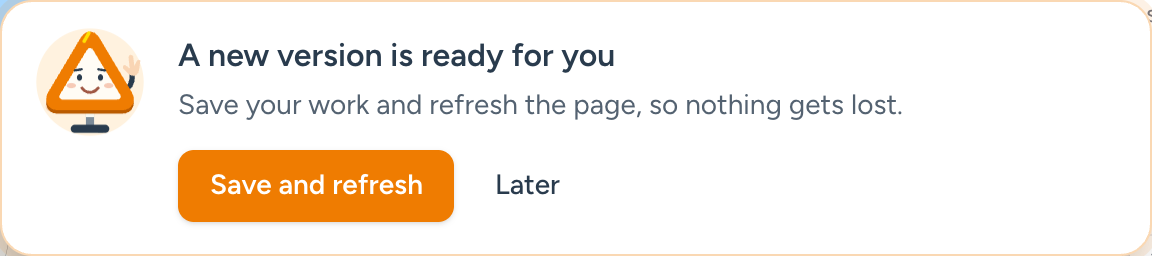
If A new version is ready for you appears, choose Save and refresh to save before reloading. The editor waits for pending saves and checks newer edits, including post instructions. Later keeps your plan open and reduces the message to a reminder; open it again when you are ready.
If saving fails, keep the work open and use Try again. Do not manually refresh until it has saved. On pages outside the editor the action is Refresh now; finish any form first. Continue to work in one tab rather than relying on several tabs to merge your edits.