
Create or reopen a Traffic Chart plan from a connected CityLogic application, and understand when CityLogic has locked the drawing.
Start in CityLogic
This guide is for users whose CityLogic environment is connected to Traffic Chart. There is no general Connect CityLogic button in the editor. Ask the person managing your CityLogic application for a fresh launch link if the integration is unavailable.
Open the Traffic Chart link from CityLogic. Sign in with the account you intend to use. If needed, create an account, verify your email and finish password setup. The flow then returns to the linked-plan task. First login and onboarding.
Do not forward a launch link as a public share link. Use the plan's normal sharing options once it exists.
Create the linked plan
- On Create a plan for CityLogic, choose an available traffic-plan or event-plan type.
- Choose the correct workspace when more than one is offered. Ordinary workspace access and assigned-editor rules still apply.
- Complete the selected plan form, checking country, title and dates before creating the plan. The CityLogic flow starts with Germany's catalogue; a traffic plan's country can be changed.
- Create the plan. It is linked to the CityLogic application you started from.
Use the language selector if needed. Go to dashboard leaves the focused creation screen. Return through CityLogic when you want to continue the linking task.
The connection does not import addresses, road closures or diversions into your drawing. Check and draw the layout yourself.
Reopen an existing plan
A launch for an application reference that already has a plan opens that same plan. To create a separate linked plan, start the appropriate new-plan task in CityLogic. Copying an existing Traffic Chart plan does not create a new CityLogic link.
If another person opens the same reference, it does not give them your edit rights. They can receive a read-only view. Check the account and assigned editor if you expected to edit.
Recognise the link and a lock
Signed-in users who can manage the plan's review see a link icon in the status control before the title. Open Plan status and check Integration. If CityLogic has locked the plan, Locked by identifies the source when your account may see it. Hovering or focusing the control can also show Linked to CityLogic in the summary. Public share-link viewers do not receive provider details. A link icon alone does not mean that the plan is locked.
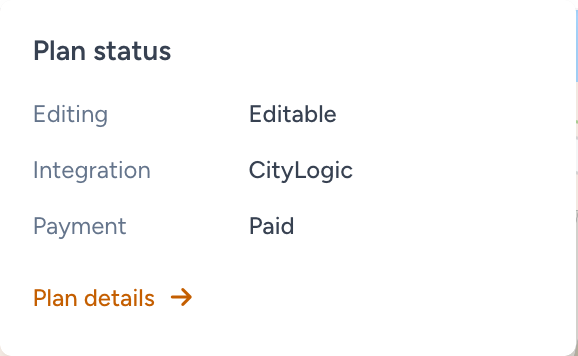
If the provider locks the plan, Comments shows Locked by CityLogic and the time. The lock is different from a municipality review. You can view and export the plan, but cannot edit the drawing, delete it, change post instructions, reassign its editor or transfer it to another workspace while locked.
Ask the responsible CityLogic contact to release that lock when appropriate, then refresh the plan. A separate municipal review lock can still remain. Disabling a connection does not automatically unlock an existing plan.
Copies, moves and deleted plans
A permitted independent copy has its own identity and carries neither the CityLogic link nor its external lock. It does not replace the plan used by CityLogic. Moving an unlocked original to another workspace keeps the link and still requires the normal transfer rights. Move, copy, and assign an editor.
A deleted linked plan cannot be recreated through the old application reference. Ask for a new CityLogic task or reference for a replacement. Do not repeatedly create an unrelated drawing hoping the old link will find it.
If something blocks you
| Situation | What to do |
|---|---|
| Link expired or unavailable | Request a fresh link from CityLogic |
| Account setup finished but the linking task expired | Start again from CityLogic; account setup itself need not be repeated |
| Wrong account or workspace | Sign in with the intended account and choose an eligible workspace |
| Plan opens read-only | Check ownership and assigned editor; the link grants no extra permissions |
| Locked by CityLogic | Ask the CityLogic contact to unlock it, then refresh |
| Old link refers to a deleted plan | Request a new application reference for a replacement |
What good looks like
You opened the intended plan from CityLogic, in the intended workspace and account. The link icon identifies the connection. If you need to edit, both your editor access and the plan's lock state allow it.