
Use the safety plan checks to find missing information and points that need attention before you share a draft.
Open the checks
Open Safety plan, then Checks in the eight-step progress strip. The summary separates Meets guideline, Missing information and Shortages. Open the items below it to understand the result. Create a safety plan.
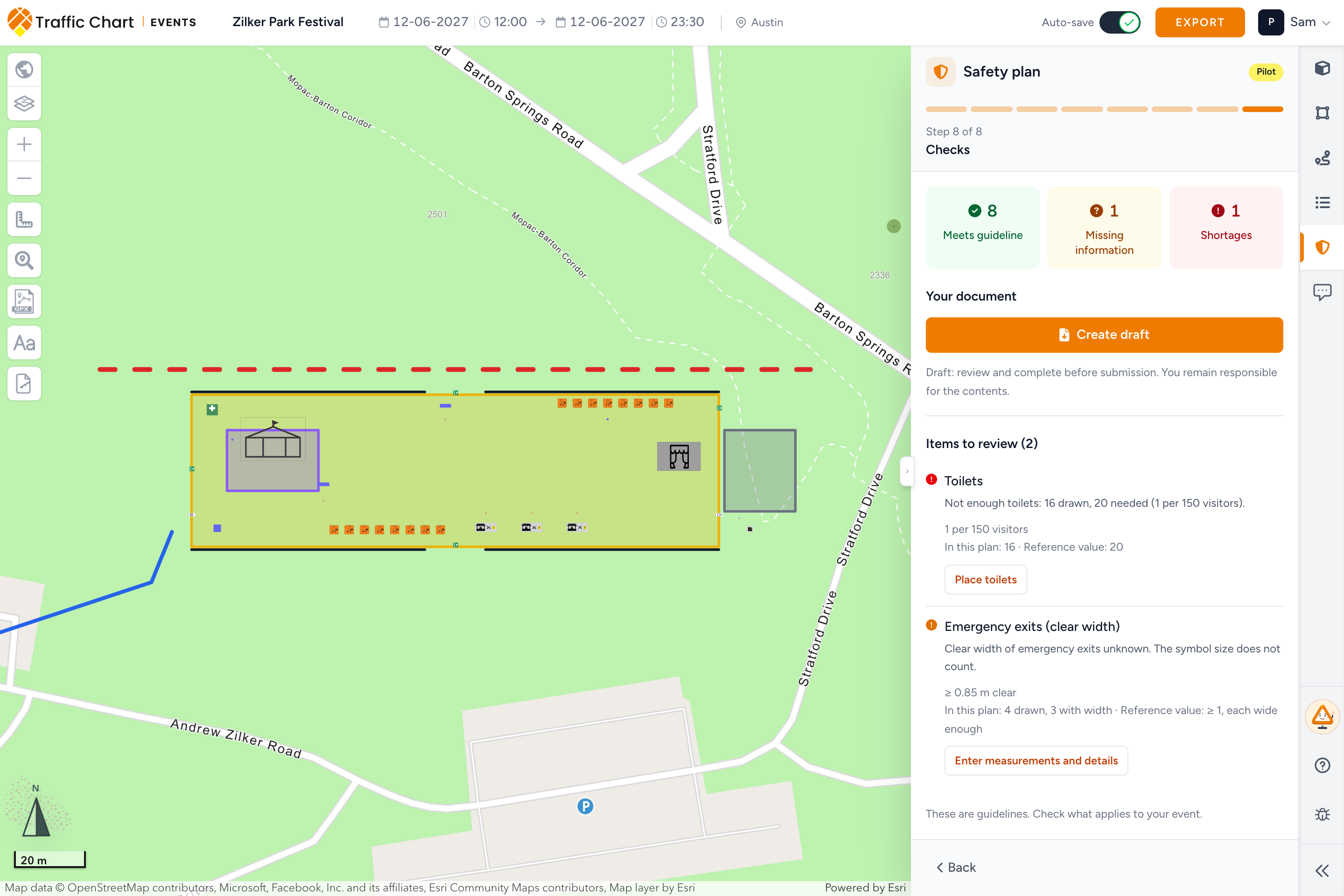
These are planning guidelines, not a complete safety assessment or a permit. A green result does not establish that your event is safe or approved. Check the requirements that apply to your event with the responsible authorities and advisors.
What each result means
| Result | Your next action |
|---|---|
| Meets guideline | Check that the drawing and entered values reflect the actual event |
| Missing information | Enter the missing value or correct the drawing before relying on the check |
| Shortages | Review the displayed comparison and adjust the layout or arrangements |
A missing value is not zero and is not a pass. For example, a drawn emergency-exit symbol does not establish its usable clear width.
What comes from the drawing
Object counts, public-area geometry, route geometry and available dimensions come from your event plan. Visitor numbers, staffing and other arrangements come from your answers. Check both sources if the result surprises you.
| Check | What to inspect |
|---|---|
| Public-area and tent capacity | Correct area boundaries, net usable space and the visitor number used for the comparison |
| Toilets, first aid and fire extinguishers | Relevant object types and their actual quantities and locations |
| Security staff | The entered staffing and visitor numbers |
| Emergency exits | Individual usable widths and valid locations, not the size of the symbol |
| Emergency routes | Valid route geometry and usable width, not just the thickness of a drawn line |
| Food-truck distances | Energy type, neighbouring objects, dimensions and reliable positions |
Object rows can affect counts. A row of emergency-exit symbols does not supply individually checked clear widths. Use individual exits and verify each measurement. Object rows.
Fix a point and check again
- Read the check description, the value from your plan and the reference shown beside it. Use View calculation when offered.
- Choose the relevant action, such as Place toilets, Adjust food truck or Enter measurements and details.
- If you go to object selection, choose the appropriate type. All objects returns to the full catalog when suggestions are shown.
- Correct and save the drawing or answers, then return to Safety plan and Checks.
- Create a new document version if a previously generated document is now outdated.
Measurements entered in the checks do not resize objects or change the drawing. If you change an exit's width in its drawing details, save the drawing too. Do not confuse the two places where a measurement can be recorded.
Unknown distances or geometry
When positions, footprints or route geometry are incomplete, the module can report missing information instead of a reliable distance. Check the affected object, tent area or bulk placement. Redraw invalid geometry when needed. Do not treat an unavailable measurement as a safe clearance.
What good looks like
Every result is based on current drawing data and checked answers. Open points are either resolved or clearly documented for review. Your latest draft is generated after those changes and still receives a human review.
Watch: resolve a missing measurement
Follow the check to the measurement fields, enter a verified width, and wait for the saved status. This updates the safety answers, not the physical size of the symbol.