This recipe takes one common job from an empty map to a file pack the municipality can approve: a street closed for works, with traffic sent round a signed detour. Each step links to the full article if you want more detail.
When you need this
Use it for your first real closure, or as a checklist before you send a plan. Skip it if you already know the editor well. The individual articles are faster for a single question.
1. Start the plan
On Home, choose Traffic Plan. Set Country, a plan name that says where and when (for example Austin, Congress Avenue closure, September 15), and the Start and End of the works. Click Start planning.
The dates print on every PDF page. Your first plans.
2. Find the street
Click Search address and type the street with its town, for example Congress Avenue, Austin. Zoom in until the intersections at both ends of the closure fill the map. Search address, zoom, and Scale.
3. Close the road
Open Traffic Objects → Signs:
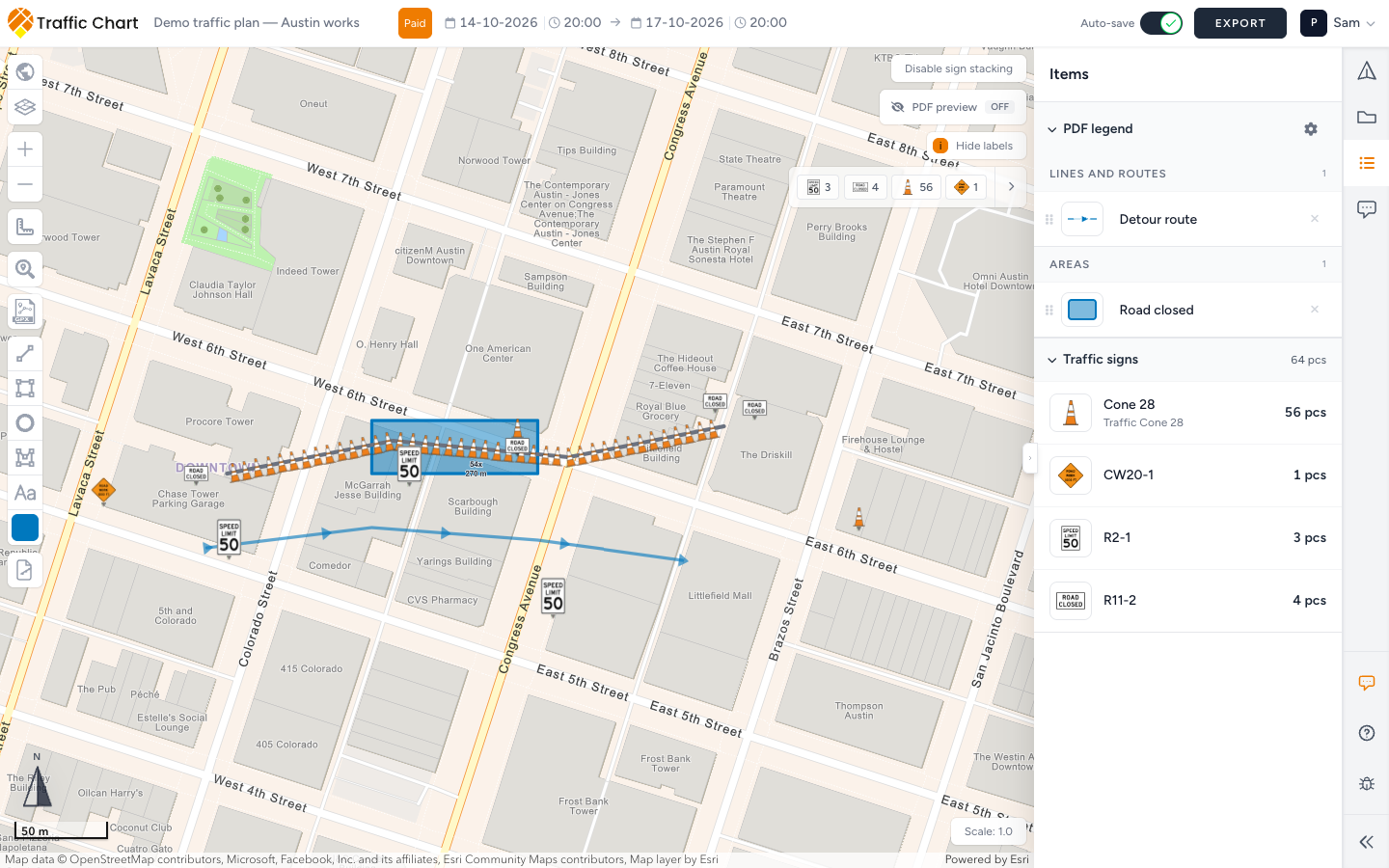
- Search R11-2 (road closed) and place one at each end of the closed stretch.
- Search CW20-1 (road work ahead) and place one on each approach, before drivers reach the closure.
- Add any speed limit your permit asks for on the approaches.
These codes are from the United States catalog. On a plan with another Country the signs have other codes.
4. Block the street
On an organization account, use Bulk signs: draw the line across or along the closed stretch, pick Cone 28 (the cone), and choose Separated with a Distance of a few meters, the way the crew sets out cones. One line gives you a counted row of cones in the Materials list. Place bulk signs along a line.
Without Bulk signs, place a few barriers from Signs by hand.
5. Draw the detour
- Click Add line, then the right arrow beside it (the line points forward), so the line shows which way traffic goes.
- Click along the streets of the detour, following the road. Double-click to finish.
- If the municipality wants the closed stretch marked, draw it with Add rectangle.
6. Sign the detour
Search Omleiding in Signs. The detour boards are combination signs, for example Omleiding + custom routebord. Place one at every intersection where drivers must turn, open Details → Edit sign, and set the text and arrow. Give each board a Name so it is easy to find in the Materials list. Combination signs.
7. Make the key readable
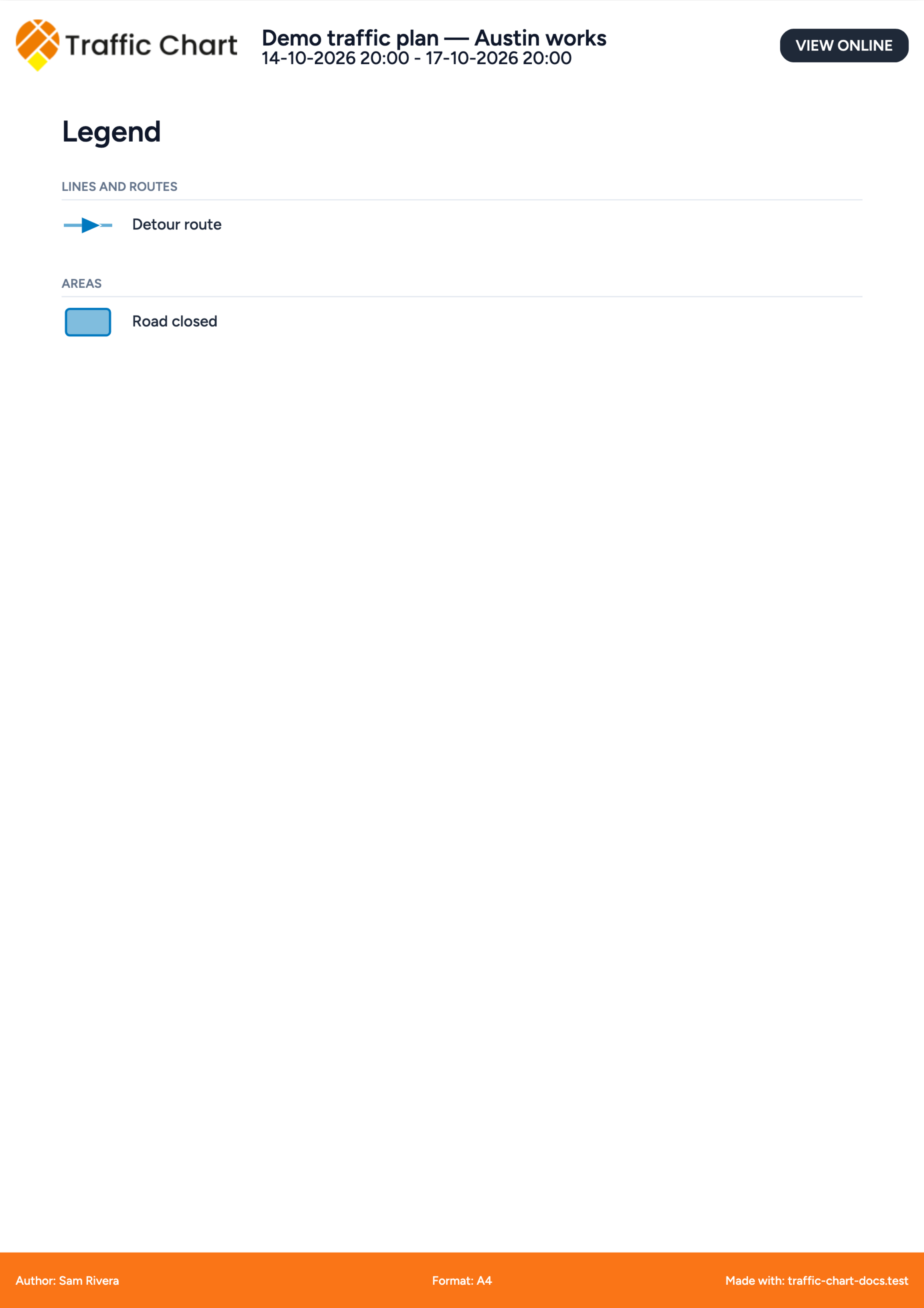
Open Items → PDF legend on the right strip. Your line and rectangle are already listed with readable color names. Rename them in plain language, for example Detour route and Road closed. That is the text the reader sees. Traffic plan legend.
8. Build the file pack
Click Export. If the municipality works from links, copy the Sharable link and skip to step 9. For files, click Continue to export:
- Draw a Detail map over each intersection on the detour.
- On a Pro account, draw one XL map over the whole detour, turn on Detail frames, and turn on XL maps first. Page 1 is then an overview with a numbered box for every detail page.
- Turn on Include legend and Materials list.
- Click Export now and open the PDF.
Export and print traffic plans.
9. Send it
Most municipalities prefer the Sharable link: it always shows the latest saved version. Attach the PDF only when someone asks for a file. Share a plan and read-only view.
What good looks like
- Both ends of the closure carry R11-2, and every approach warns with CW20-1.
- The detour line follows real streets, with arrows in the direction of traffic.
- Every turn on the detour has a board.
- The legend speaks plain language, and the PDF opens on an overview that points to each intersection page.
If something blocks you
| Situation | Where to go |
|---|---|
| A sign code is missing from Signs | Check the plan's country: Wrong country or missing traffic signs |
| Bulk signs or XL is locked | Feature not available for my account |
| Signs stop after five on a new plan | I can’t place more signs |
| The PDF is blank or stuck | Export fails or is blank |