
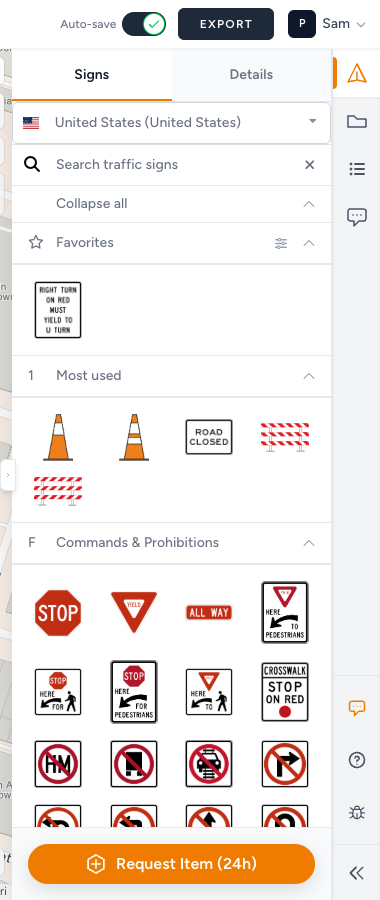
Favorites is your own shortlist of traffic signs. Star a sign once and it sits at the top of Signs on every plan in that country, so the plates you use every week are one click away.
When you need this
Use it when you keep scrolling past Most used and Speed to reach the same few plates. Skip it if you only place a sign now and then. Search is quicker for that.
Who has it
Favorites come with Pro and organization accounts. On other accounts there is no star and no Favorites group. Feature not available for my account.
Your list is personal. Colleagues in the same organization keep their own. The list follows you to every plan and workspace you open.
Add a sign
- Place the sign and select it on the map.
- Open Details.
- Click the star on the sign's image. Its tooltip reads Add to favorites followed by the sign code, for example Add to favorites: R2-1. The star fills in.
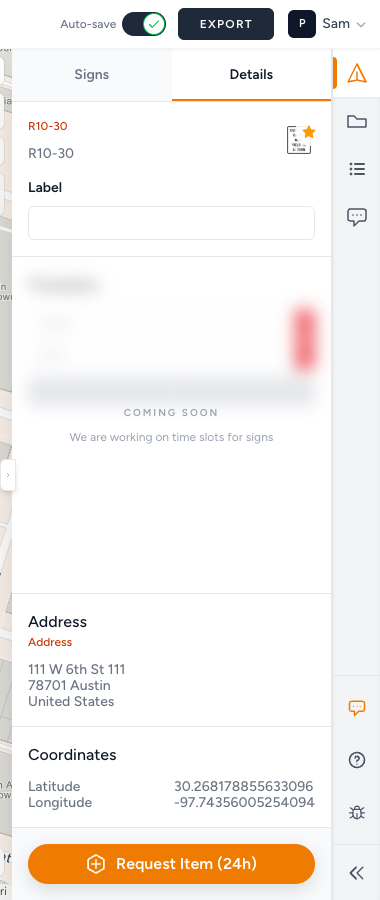
The sign now appears in Favorites, the first group in Signs.
Combination boards made from a template have the same star, on the board preview in the combination editor. Starring it adds that template to Favorites. Combination signs.
If saving fails, the star flips back and you see Could not save favorite. Please try again.
Use your favorites
Open Traffic Objects → Signs. Favorites is the first group, marked with a star. Click a sign in it, then click the map, like any other sign.
The group only shows signs from this plan's catalog. A US sign you starred does not appear on a Canadian plan. It is back as soon as you open a US plan again.
While the list loads, the group says Loading favorites…. If it could not load, click Retry loading.
With nothing starred yet: No favorites found. Select a sign or object and use the star on its image in Details.
Remove a sign
You can do it from the map or from the list:
- Select a placed copy, open Details, and click the filled star (Remove from favorites).
- In Favorites, click Edit favorites (the sliders icon). Each sign gets an × (Remove from favorites). Click Done editing (the check) when you are finished.
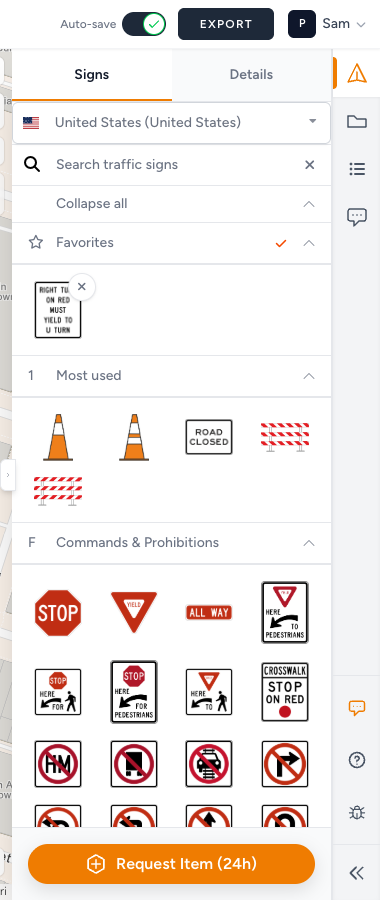
While you are editing, clicking a sign in Favorites does not pick it for placement. Removing a favorite never changes signs already on the map.
What good looks like
- Favorites holds the five to ten plates you place on nearly every plan, not the whole catalog.
- You can place your usual works set without searching.
- Signs you stopped using are gone from the list.
If something blocks you
| Situation | What to try |
|---|---|
| No star in Details, no Favorites group | Your account does not include Favorites: Feature not available for my account |
| A starred sign is missing from Favorites | It is not in this plan's catalog. Check the plan's Country: Wrong country or missing traffic signs |
| Could not save favorite. Please try again. | Try again. A sign that has been retired from the catalog cannot be starred |
| Retry loading stays | Refresh the page. If it keeps failing: Contact support |