
Legend is the key that explains your drawings on paper: which color is the detour, which area is closed to traffic. You edit it in the editor, then switch it on when you export.
When you need this
Use it when the PDF goes to people who will not open the live plan: a municipality inbox, a contractor, a printer. A color on the map means nothing to them without the key.
Skip it for signs. The legend never lists traffic signs. They stay in the Materials list. Skip it too when you send a Sharable link.
Open Items
Click Items in the right strip (the list icon). The panel has collapsible sections:
- PDF legend — the key for your lines, areas, GPX routes and selected map data.
- Traffic signs — counts of placed signs, including bulk placements and combination boards.
- Post symbols — appears when the plan has controller-post items.
Click a section heading to fold or expand it. Sign and post counts describe the whole plan, including content outside export maps or on hidden layers. Different combination-board appearances are counted separately; equivalent saved boards stay grouped.
The PDF legend also covers the whole plan. Sign counts are an on-screen overview; signs stay in the Materials list rather than becoming PDF-legend entries.
What goes in by itself
Lines and areas you draw go in automatically. The legend groups them by color and, for lines, by arrow direction:
- Two blue lines are one entry: Line blue.
- A blue line with arrows is its own entry: Line blue · Forward arrows (or Backward arrows).
- Rectangles, circles, and shapes are Area entries, for example Area blue.
- An imported GPX route is a GPX route entry.
Default labels use the type and a readable color name in the app language. Other colors use their preset name, or custom color followed by the color code. Existing labels you wrote are retained. Rename each entry with Legend label for that item, for example Detour route or Closed to traffic. That is the text the reader sees.
Map data you turned on in the map layers does not go in by itself. Add it with Add item.
Empty legend
When the list is empty the panel says Your legend is empty, followed by one of:
- Draw a line or area, import a GPX route, or enable map data to start your legend. There is nothing to list yet.
- 3 plan items are available to add. (the count the app prints). Click Add item.
Title, layout, and quantities
In Items → PDF legend, click the gear marked PDF settings. It expands the legend section and reveals these controls. Click the gear again to hide the settings.
| Control | What it does |
|---|---|
| Title | Heading on the legend page. Placeholder Legend. Max 120 characters. |
| Layout | Automatic, One column, or Two columns. Automatic uses one column for up to ten entries and two columns above that. |
| Show quantities | Off by default on traffic plans. When on, each entry shows how many times it is used. |
Add, reorder, and remove entries
Add item opens Add to legend: Choose something that is already used in this plan.
- Filter with Search plan items…, or use the section chips starting with All.
- Pick an item. Back to legend returns without adding.
- Done closes the picker.
No match: No matching plan items found. Nothing left to add: Everything in this plan is already in the legend.
Entries are grouped under Lines and routes, Areas, and Map data. Drag an entry by Reorder legend entry. Remove one with the button named after the entry, for example Remove Detour route from the legend. Removing an entry only changes the key. The drawing stays on the map.
Include it in the PDF
- Click Export in the header, then Continue to export.
- In the export sidebar, turn on Include legend. It sits right under Map pages.
- Draw at least one export map if you want map pages, and set its Paper size.
- Click Export now.
Include legend is off until you turn it on. If it is on and the list is empty, the sidebar says There are no legend entries to export. Add entries or select another export document.
The legend pages come after the map pages and before the Materials list. They use the same paper size as the map and materials pages, so the pack prints as one set.
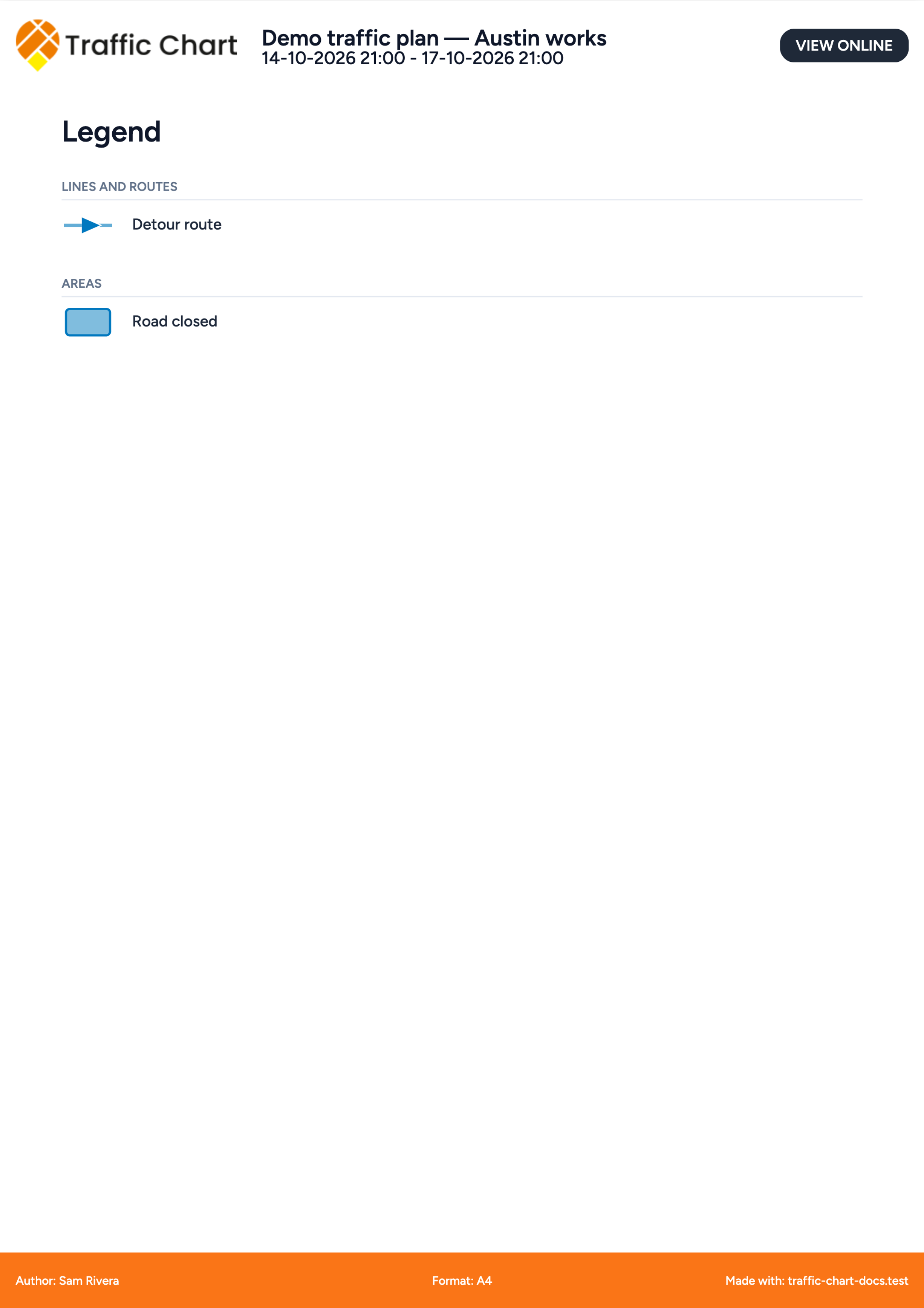
You can also send the legend without map pages. Turn Map pages off, keep Include legend on, and export.
Who can change it
Viewers on a Sharable link or a read-only plan see the legend but cannot edit its entries, title or layout. The same goes for a plan that is locked for review or approved.
They can choose Include legend in their export, even if the saved plan did not have it switched on. That choice affects their download only and does not save changes to the original legend. For a legend-only traffic PDF, switch Map pages off and keep Include legend on. There must be at least one included legend entry.
What good looks like
- Every color on the map has an entry with a plain-language label, not a color code.
- Title names the works, or stays Legend.
- Layout is Two columns only when the list is long enough to need it.
- Include legend is on for the export you send, and you opened the PDF to check the key against the map.
If something blocks you
| Situation | What to try |
|---|---|
| Your legend is empty | Draw a line or area first: Drawing and measuring |
| A sign is missing from the legend | That is by design. Signs are counted in the Materials list |
| There are no legend entries to export. | Add an entry, or turn Include legend off |
| The PDF has no legend page | Turn on Include legend in the export sidebar and export again |
| You cannot edit the legend | The plan is read-only or locked: I can’t open or edit a plan |