Traffic plans are built from the sign catalog for this plan’s Country. This page is everyday place, stack, label, and edit. A row of the same sign along a line is Place bulk signs along a line. Offset stacks are in Advanced sign placement.
Use this when you are drawing one sign at a time. Skip it if you only need a share link or a PDF.
Find and place
-
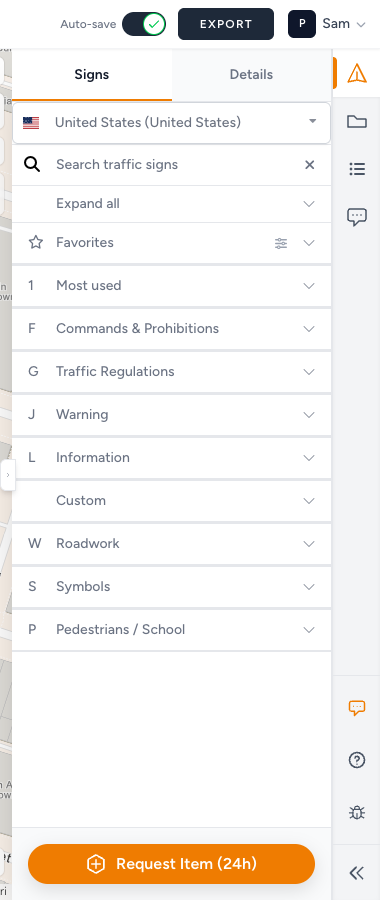
Open Traffic Objects → Signs.
-
Confirm the country list at the top of Signs. A toast such as Showing signs for The Netherlands (Nederland) based on traffic plan follows that choice.
-
Type in Search traffic signs, or open a category. Categories depend on the country. In English you will typically see some of:
Most used, Speed, Priority, Road Closure, Mandatory Direction, Parking & Stopping, Commands & Prohibitions, Traffic Regulations, Built-up Area, Warning, Direction, Information, Waterways, Custom, Subsigns, Roadwork, Symbols, Pedestrians / School, Emission zones, Events.
On Pro and organization accounts, Favorites comes first: the signs you starred yourself. Favorite signs.
-
Collapse all / Expand all when the list is long.
-
Click a sign, then click the map. If the search is empty: No signs found. If the catalog itself fails: Could not load traffic signs — refresh and retry.
The sign-count control opens Items in the right sidebar. Expand Traffic signs to see quantities by sign type, and Post symbols when the plan has controller posts. Equivalent combination boards are grouped; boards with different text or appearance stay separate. These counts cover the whole plan, not only the current PDF pages. Use them to spot a plate you placed twice by accident. Traffic plan legend and Items.
Details with nothing selected: No sign selected. Click a stack first.
Placement is checked against the free sign limit, participating municipalities, and whether the plan is Paid. If the app blocks you, follow the dialog. Full rules: Billing, free use, and credits and I can’t place more signs.
Wrong catalog: Wrong country or missing traffic signs.
Move, rotate, duplicate, remove
Click a placed stack. The toolbar:
| Control | Does |
|---|---|
| Move sign | Drag the real location |
| Displace sign stack | Offset the drawing; Pro. Details in the advanced article |
| Rotate sign | Turn the stack |
| Duplicate sign | Copy the stack next to the original |
| Edit sign | Opens Details |
| Remove signs | Deletes the whole stack |
Each plate in a stack also has Remove sign.
Duplicate sign counts toward the free sign limit like any other placement. On an unpaid plan, a copy that takes you past the allowance opens the payment dialog. Pay or spend a credit and the copies stay. Close the dialog and the copies that were over the limit are removed again. The button is unavailable while you are still placing another sign.
Moving into a non-participating area can hit the free limit. Approved or in-review plans disable these controls. Tooltips: Plan is approved and locked, Plan is under review, Plan is locked, or Plan is read-only.
If PDF preview is On and the XL rectangle is unlocked: Lock the preview map to select this object. Click Lock preview map, then select the stack.
Details: text, labels, address
Select the stack and open Details (or Edit sign).
Sign text appears when that plate allows or requires inscription. If you see Please select a road type, choose it before the text field accepts input. Length limits show in the form.
Label is a short crew tag on the stack (maximum Only 20 characters are allowed when enforced). Use Show labels / Hide labels on the map when you want those tags visible while drawing.
Address and Coordinates (Latitude, Longitude) describe the location. Prefer Search address to navigate; use coordinates when a municipality asks for them.
If the plate is a traffic-controller post, Details may include Manage post orders? Open post orders. That panel is Post orders: Post items, Posts, Post name (label), Orders, Google Maps, Go to post. Full walkthrough: Materials list and post orders.
Timeslots on Details is marked Coming soon. The line under it is We are working on time slots for signs. Use the plan Start and End until that ships. Do not wait on Timeslots for a permit drawing.
Sign stacking
Enable sign stacking / Disable sign stacking sits on the right of the map (with PDF preview and Show labels). Stacking is on by default. The control reads Enable / Disable plus sign stacking.
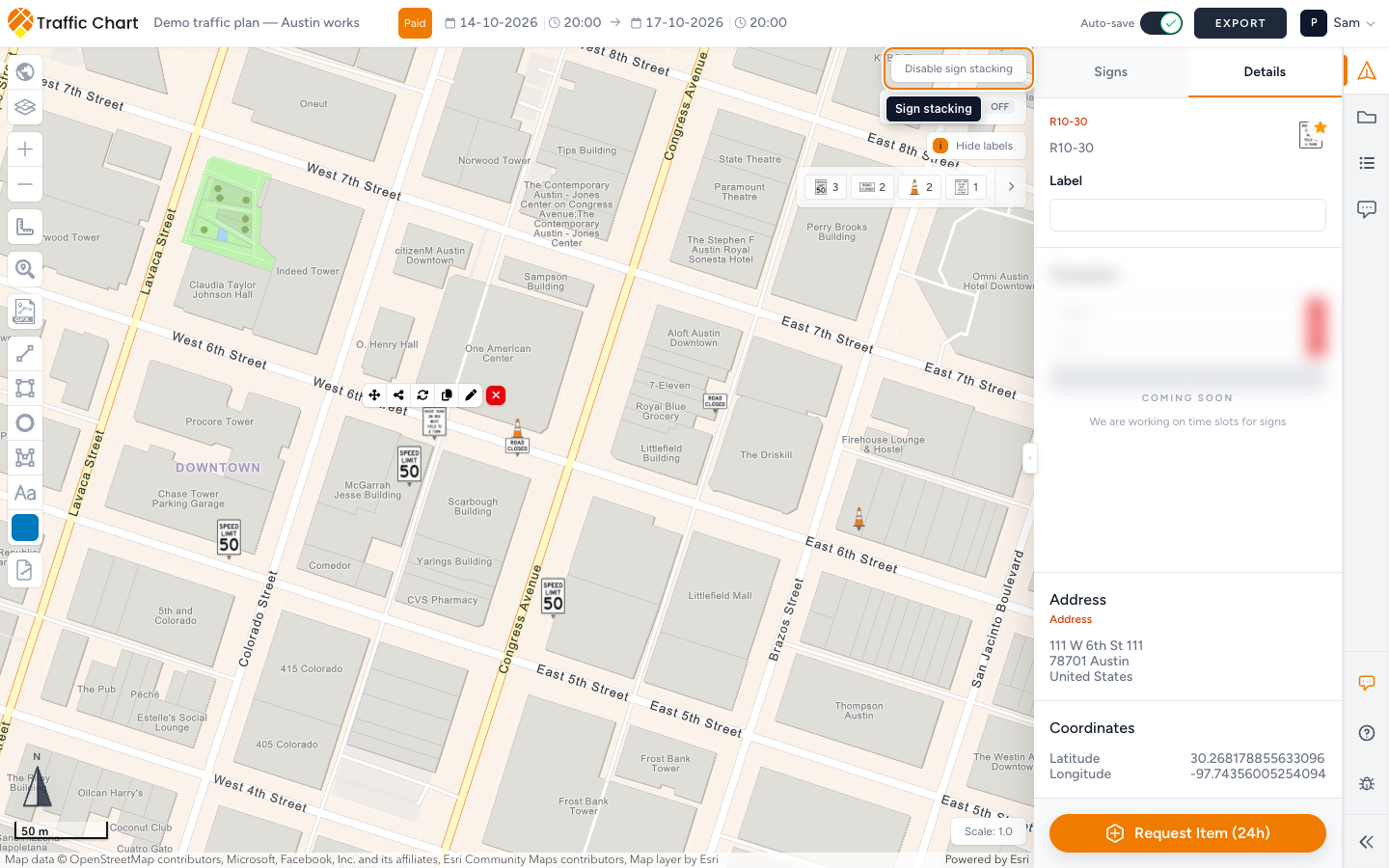
With stacking on, placing a sign on an existing location adds a plate to that pole. With stacking off, a nearby click starts a new location.
Select a stack to reorder visually by removing and placing, to Remove sign on one plate, or to edit Details.
The materials list can add Stacked signs as a mounting overview. Note on that section: This is a mounting overview per post. The quantities for the individual signs are already included in the materials totals above. Those quantities are already in the totals above that section.
Dense intersections often combine stacks with Displace sign stack so plates do not sit on top of each other on paper.
Combination signs
Custom boards live in a full editor titled Combination sign (Build your sign with text and icons). Open it with Edit sign on a placed template.
That editor has its own article: Combination signs. Do not skip it if you build detour boards — validation (Check the sign), Name on the materials list (This is how it appears on the material list.), and unsaved-changes behavior all live there.
Public share viewers see the finished board snapshot, not the editor catalog.
Request a missing item
If the catalog has no match, Request Item (24h) at the bottom of Signs.
Describe the code, country, and what you need. Continue with the closest available sign if the works cannot wait. You can also email customer@traffic-chart.com. The form and what happens next: Request a missing sign or object.
Older plans from before 01-10-24
Opening some older drawings can toast:
It seems like you have imported an old traffic plan. When (re)using plans made before 01-10-24, previously placed items may have shifted and will need to be adjusted once to ensure the correct location. This is due to the improved surfaces and the export function of the system. For signs with text, please select each sign and reselect the road type to regenerate the text.
Do that once. Move sign any stack that no longer sits on the roadway. Open Details, pick the road type again, and confirm Sign text. Then Save.
What good looks like
The catalog country matches the road authority. Stacks have short unique Labels. Required Sign text and road type are filled. Combination boards Save without validation errors. Sign counts under Items match the whole plan; check the exported materials separately when you export only some map pages. Timeslots is left as Coming soon.
If something blocks you
| Situation | Where to go |
|---|---|
| Sign limit reached or payment dialog | I can’t place more signs |
| No signs found / wrong plates | Wrong country or missing traffic signs |
| Could not load traffic signs | Refresh; if the map is also white, Map will not load or stays blank |
| Displace sign stack or Bulk signs locked | Feature not available for my account |
| Cannot edit at all | I can’t open or edit a plan |
| Missing catalog item | Request a missing sign or object |