A bulk line places one sign many times along a line you draw: a row of cones along a closed lane, barriers across a street, or the same temporary plate every 50 meters. You draw the line once, pick the sign, and Traffic Chart works out how many you need.
When you need this
Use a bulk line when the same item repeats along a stretch of road: cones, barrier elements, fencing, delineators, or a plate that returns at a fixed interval. It is faster than placing each sign by hand, it stays one object you can move or change in one go, and the Materials list gets the right quantity.
Skip it for a handful of separate signs at different places. Place those one by one: Working with signs.
Who can use it
Bulk signs works in an organization workspace, such as Acme Events. In Personal you still see the tool, but it is disabled with Pro feature and You need an organization account to use bulk sign placement. Switch workspace in the account menu if your organization has it.
Paying for unlimited signs on one plan (Paid) does not turn on bulk signs. That is a property of the account, not of the plan. Feature not available for my account.
How a bulk line works
A bulk line is three things: the line you draw, one sign from the catalog, and a rule for how far apart the signs sit.
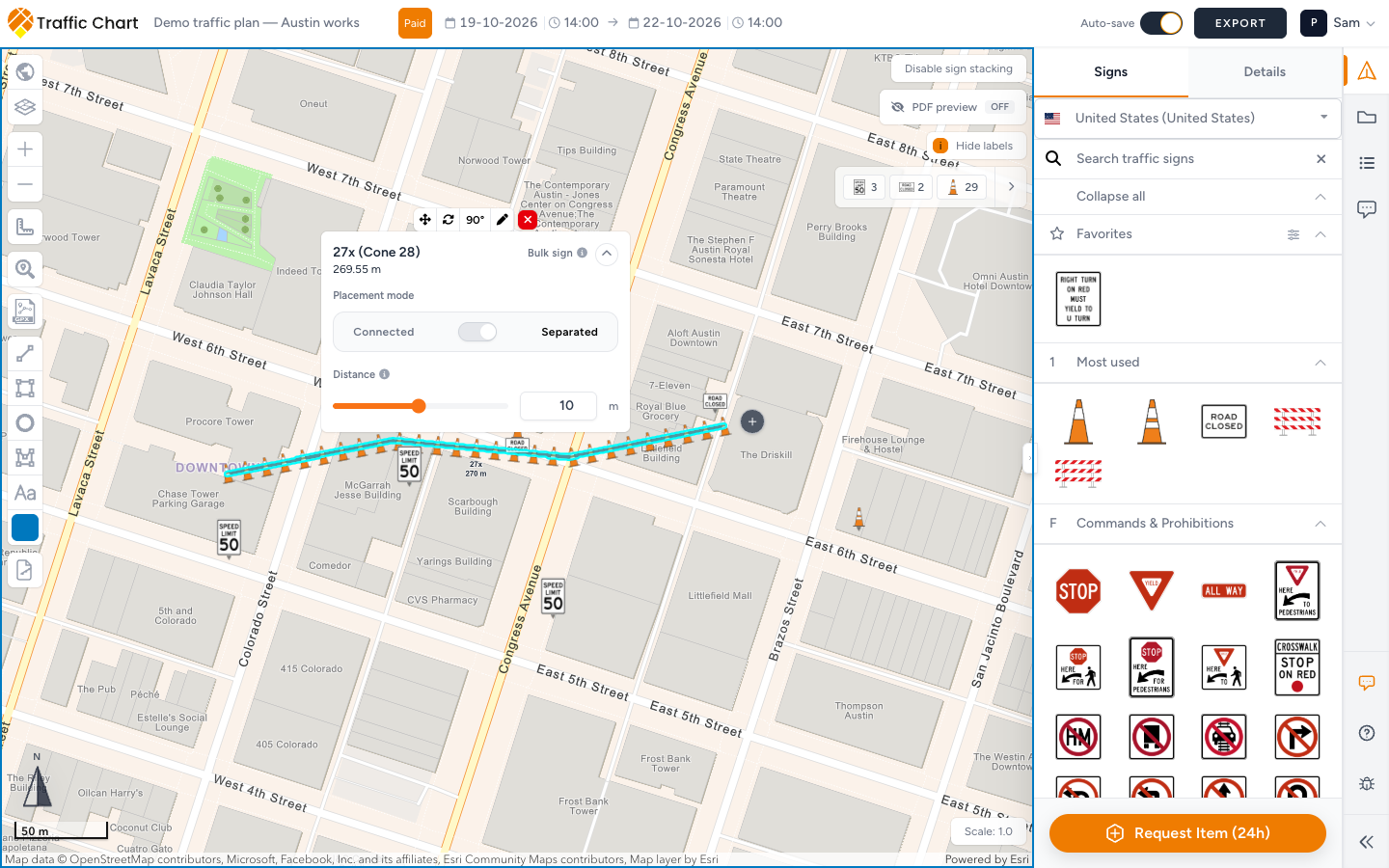
The count follows from that rule. Traffic Chart divides the length of the line by the Length (in Connected mode) or the Distance (in Separated mode) and rounds up. A 270 meter line with a Distance of 10 m gives 27x. Make the line longer, or the distance shorter, and the count goes up.
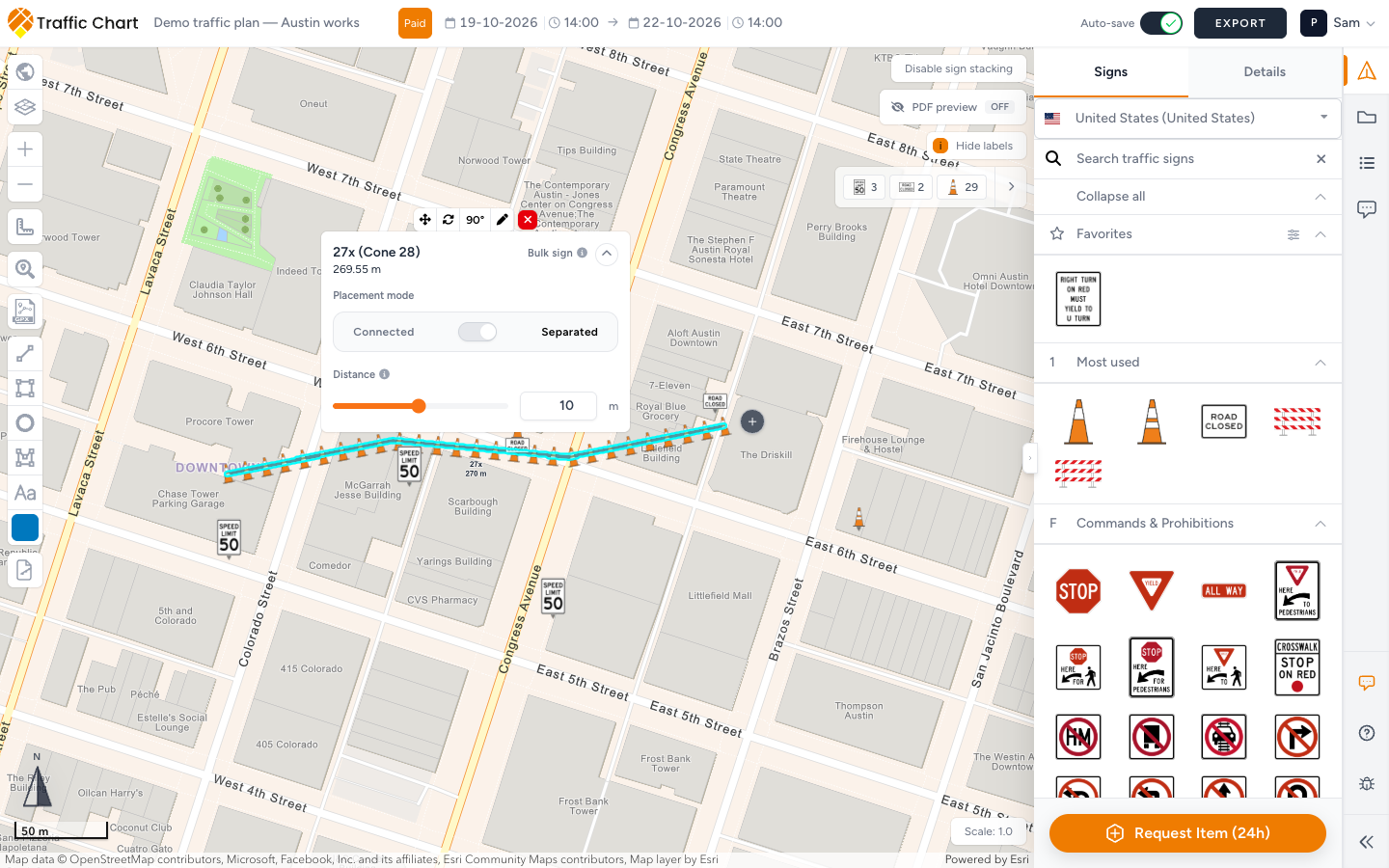
The panel on the line shows the result, for example 27x (Cone 28) and 269.55 m: 27 cones of type Cone 28 along 269.55 meters. That count is what goes on the Materials list and what counts toward a free sign limit.
The icons on the map are a preview of that row. Zoomed out, there is not enough room to draw every sign, so the map shows fewer. The count on the panel does not change with the zoom. Trust the panel, not the number of icons you can see.
Place a bulk line
- In the left tool stack, click Bulk signs.

- Click along the road where the row goes. Every click adds a corner, so you can follow a bend. Double-click to finish the line.
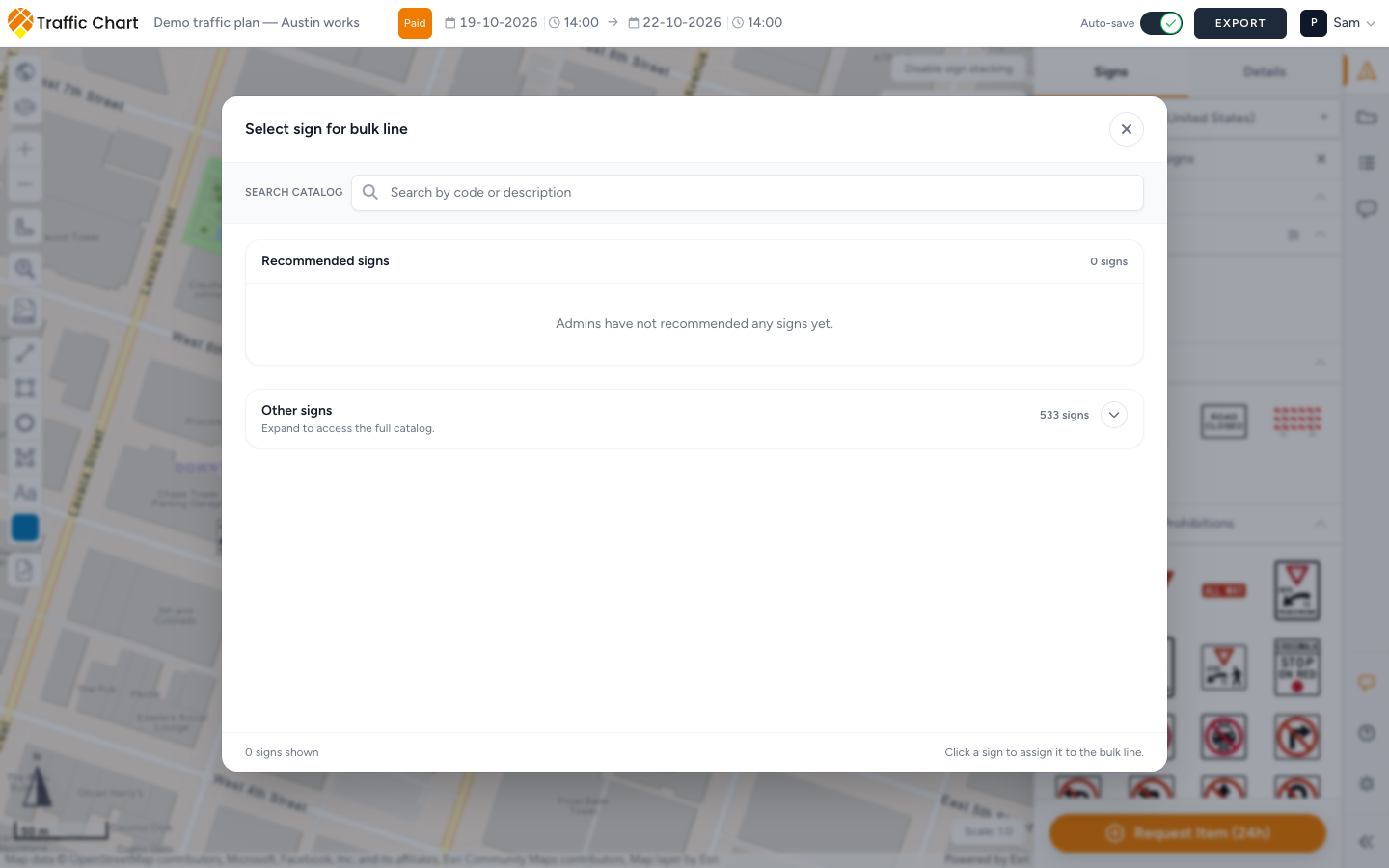
- Select sign for bulk line opens.
- Pick the sign:
- Recommended signs comes first, with a count such as 10 signs. These are the items Traffic Chart marked as suitable for bulk lines in this country's catalog: cones, delineators, barrier and fencing elements, road plates. If none are marked for this catalog, you see Admins have not recommended any signs yet. That refers to Traffic Chart, not to your organization.
- Other signs holds the rest of the catalog. It is folded: Expand to access the full catalog. Every sign of the plan's country can go on a bulk line.
- To search, type in Search catalog (placeholder Search by code or description), for example Cone 28 or cone. The search covers both groups: Showing search results from the full catalog. No match at all: No signs match "Cone 28". Try a different code or description. Clear empties the field.
- The footer counts what is on screen (for example 10 signs shown) and reminds you: Click a sign to assign it to the bulk line.
- Click the sign. The picker closes and the row appears on the line, with the Bulk sign panel next to it.
- Choose Connected or Separated and set Length or Distance (next section).
- Wait for Auto-save: saved, or click Save.
Some signs come with their own starting values, such as the length of one cone, so the row looks right straight away. Other signs start at 2 meters. Always check the value against how the crew will set out the row.
Connected or Separated
Placement mode decides how the signs sit along the line. The switch between the two is labeled Toggle between Connected and Separated placement. The info button next to Bulk sign opens Bulk sign placement: Adjust how this bulk line distributes the selected sign along the roadway.
| Mode | The signs | You set | Use it for |
|---|---|---|---|
| Connected | Sit against each other, starting at the beginning of the line | Length: the length of one item along the line | Barrier elements, fencing, a closed row |
| Separated | Are spread over the whole line, from one end to the other, with a gap between them | Distance: the gap in meters | Cones along a lane, a plate every 50 meters |
Connected in the app's words: Connected mode places each sign directly against the next one, ideal for continuous rows. Connected mode keeps each sign flush by using this length. About Length: We use this length to keep each sign connected to the next one. Increase it for larger signs.
Separated in the app's words: Separated mode distributes signs along the full line, leaving the selected distance between each sign. Separated mode keeps this many meters between each sign. About Distance: We repeat the selected sign every X meters along the line. Lower distance means more signs.
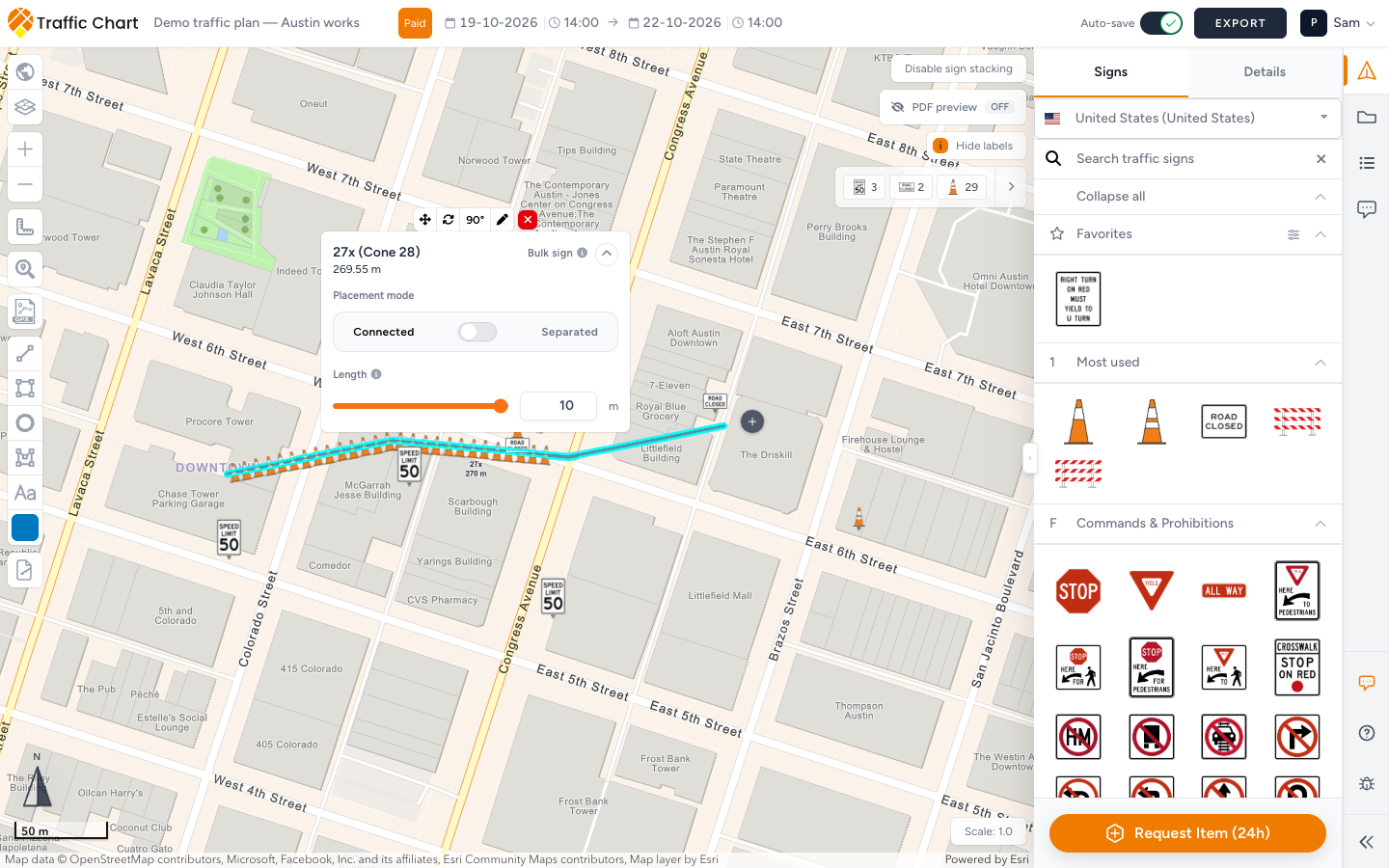
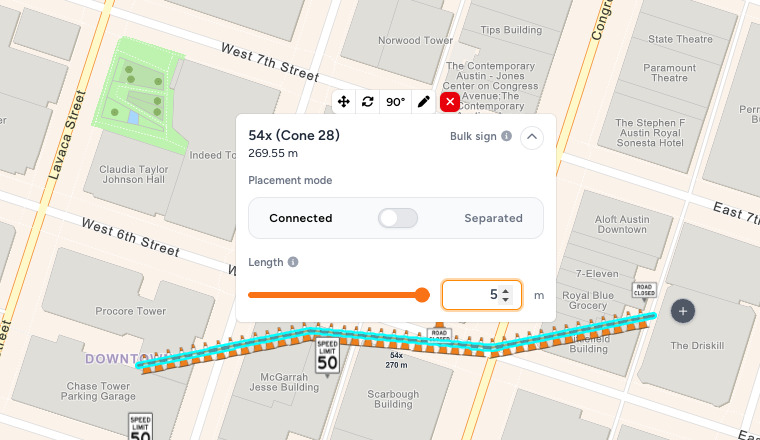
In Connected mode, Length must be the real length of one item. Set it to 2.5 m for a 2.5 m barrier element and the count matches the number of elements you order. Set it longer than the item and the icons bunch up at the start of the line while the count still covers the whole line. That is the sign that Length is wrong.
For cones along a stretch of road, Separated with a realistic Distance (for example 5 or 10 m) is usually what the crew does. Connected with the length of a single cone gives a solid row of hundreds of cones on a long line.
Collapse details hides the mode and the slider when the panel covers the map; Expand details brings them back.
Make the line longer
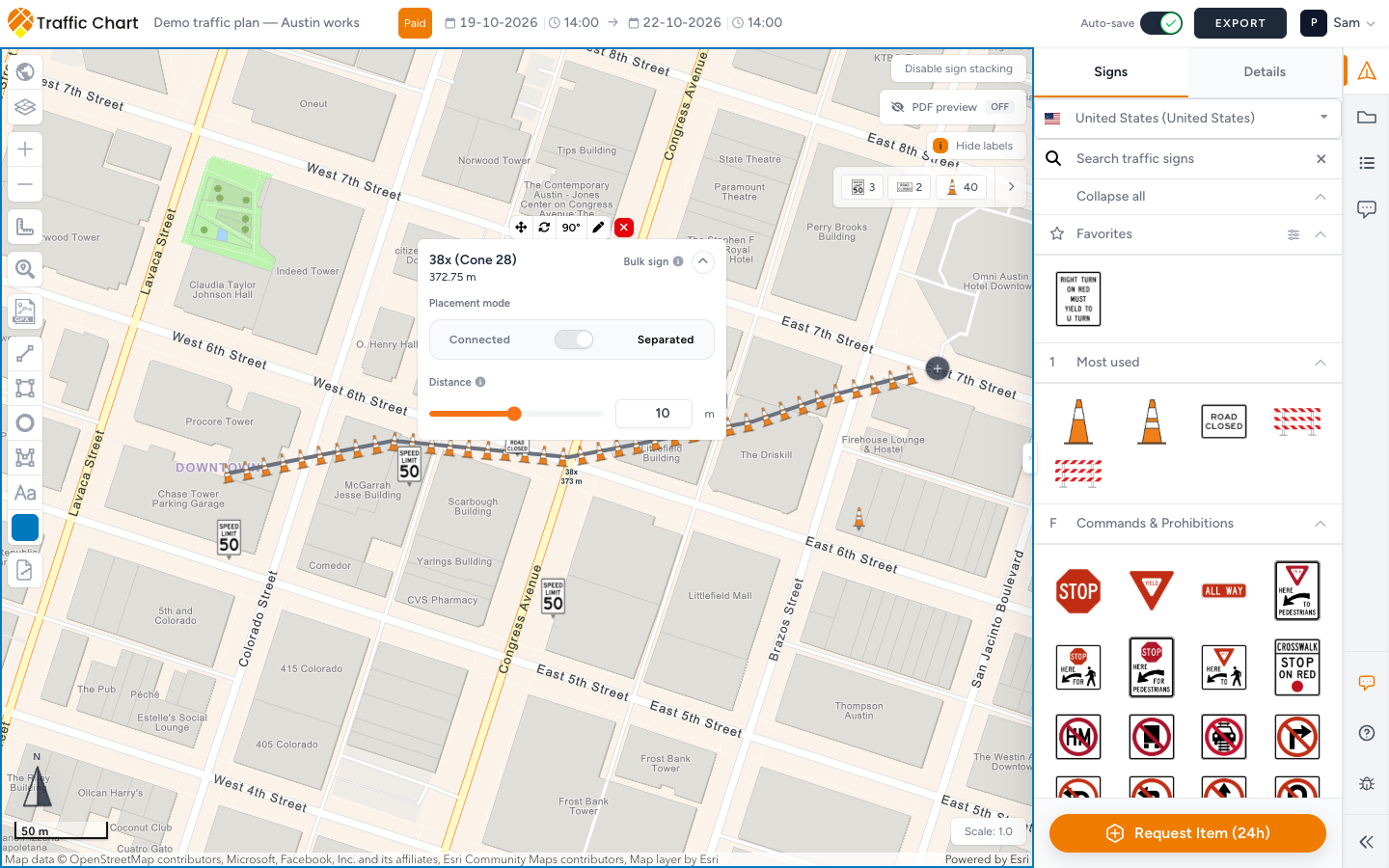
Select the line. A round + button appears just past its end (tooltip Continue line).
- Click +.
- Click further along the road, corner by corner.
- Double-click to finish.
The new part joins the existing line. Sign, mode and Length or Distance stay the same; the length and the count are recalculated. In the example, 27 cones over 270 m became 38 cones over 373 m.
Move, turn, change or remove a line
Select the line. A toolbar appears above the Bulk sign panel.
| Control | What it does |
|---|---|
| Move | Drags the whole line, with all its signs, to another place |
| Rotate line | Turns the whole line around its middle |
| 90° (Rotate signs 90° clockwise) | Turns every sign on the line a quarter turn. The line stays where it is. Click again for the next quarter |
| Edit sign | Opens Select sign for bulk line again, to swap the sign. The line stays. A sign with its own starting values also brings its own Length, mode and turn, so check the panel afterwards |
| Duplicate (optional) | Copies the line, when the toolbar shows it |
| Remove bulk sign | Deletes the line and all its signs |
Layers & Objects lists every line under Bulk Placement, for example Bulk line (21 signs). From there you can Zoom to object, and Lock object a line so it cannot be moved by accident (Unlock object to change it again).
Materials list and export
A bulk line counts as its full quantity. Items → Traffic signs in the editor already includes it, and so does the PDF Materials list. In the Excel export the line is one row, with Bulk placement, quantity: 21 (the count of your line) under Remark. While a PDF is built, the progress list shows Preparing bulk signs. Materials list and post orders.
Check the quantity before you order: it is the count from the panel, not the number of icons you saw on screen.
Free sign limit
On an unpaid plan outside a participating municipality, every sign on the line counts toward the free limit (currently 5 counting signs). One bulk line can use the whole allowance at once. If the next placement is blocked, follow Sign limit reached or Continue drawing with 1 credit: I can’t place more signs.
What good looks like
The line follows the road, not a shortcut across buildings. Separated with a realistic Distance for cones; Connected with the real Length of one element for barriers and fencing. The count on the panel is a number you would order. On paper the row reads as a row, and Layers & Objects shows each line with a count that matches the Materials list.
If something blocks you
| Situation | What to try |
|---|---|
| Bulk signs is disabled: Pro feature / You need an organization account to use bulk sign placement. | Switch to your organization workspace. No organization: Feature not available for my account |
| Paid plan, still no Bulk signs | Unlimited signs on a plan does not turn on bulk signs: Feature not available for my account |
| Admins have not recommended any signs yet. | Use Other signs or Search catalog. Every sign of the catalog works |
| No signs match "Cone 28". Try a different code or description. | Try the description (cone, barrier), or check the plan's Country: Wrong country or missing traffic signs |
| Icons bunch up at the start of the line | Connected with a Length longer than the item. Lower Length, or switch to Separated |
| Count is far too high | Length or Distance too small for this line. Raise it and check the panel |
| Fewer icons on the map than the count | Zoom in. The map draws what fits; the count stays the same |
| Next sign blocked after a long line | Free limit: I can’t place more signs |