
This page is the written file behind a municipal review. Use Review dossier for the history, a PDF of the review, or a copy of the plan in your own library.
Municipality review currently exists only in the Netherlands.
When you need this
Use it if you are Events department or a Traffic expert with access to the municipality.
You do not need it if you only draw plans. Organizers work in Comments on the map. They do not get Open dossier.
A share link is not a dossier. Opening Copy link from Plans does not create this page.
Open the dossier
From Reviews → Review dashboard:
- Scroll to Municipality dossiers. Filter or search if the list is long.
- Click Open dossier on the row.
My tasks rows do not carry Open dossier. That table only offers Open plan. Find the same plan in Municipality dossiers when you want the file.
From the plan itself, when you have access and a session exists:
- Open Comments.
- Under Current review request, click Open dossier.
The page title is Review dossier. The subtitle is the plan name plus a type badge (Traffic plan or Event plan). If the plan has no title, you see Unnamed plan.
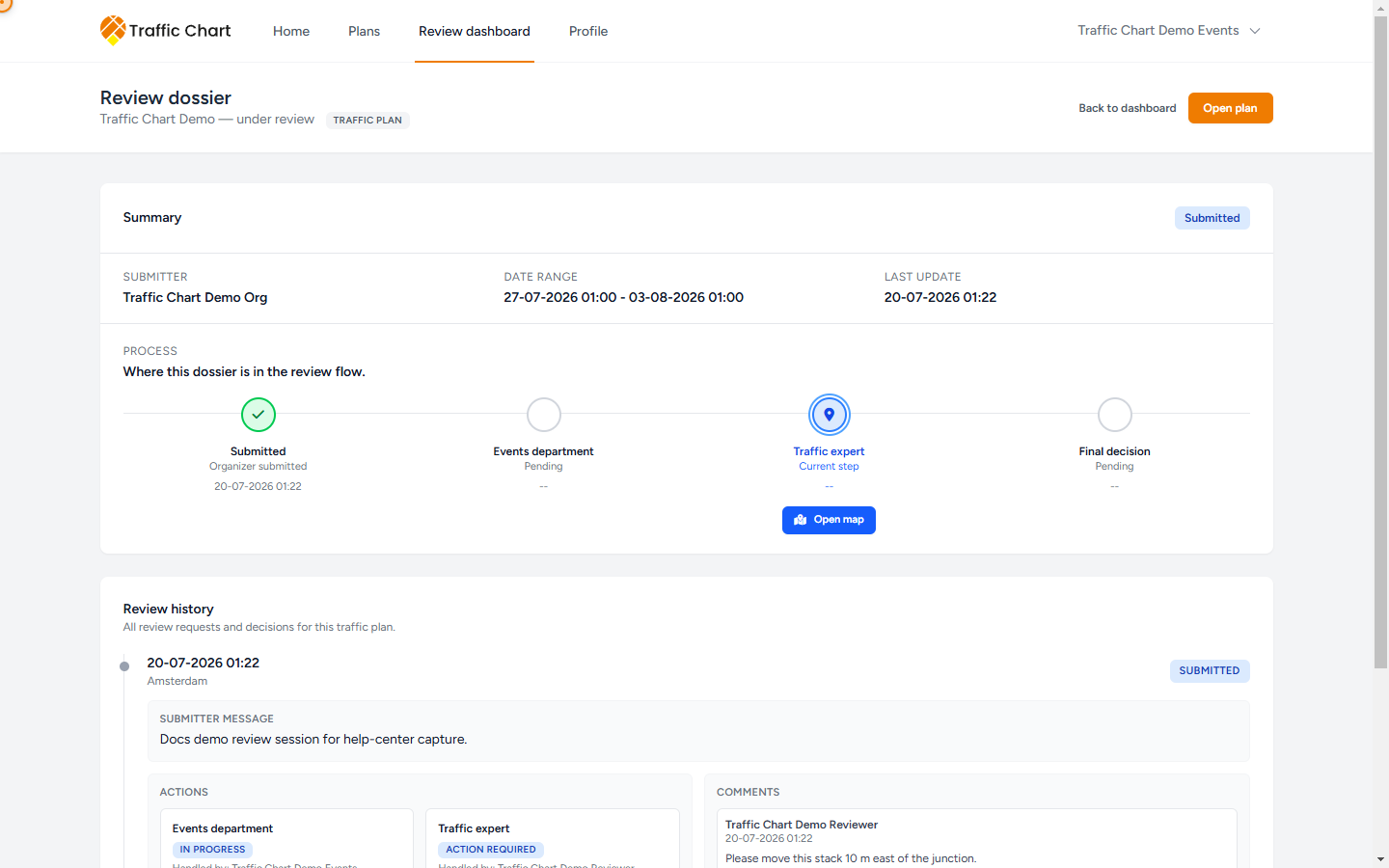
Header actions:
- Back to dashboard returns to Review dashboard.
- Open plan opens the map editor.
If there is no session yet, the dashboard row shows No dossier yet. There is nothing to open.
Summary
The first card is Summary.
On the right you see the latest request status: Submitted, Changes requested, Approved, or Rejected. If there has never been a request, the badge is No dossier yet.
The same card shows:
| Label | Meaning |
|---|---|
| Submitter | Who owns the plan. Falls back to Unknown if the name is missing. |
| Date range | Plan Start date–End date. |
| Last update | When the plan was last saved. |
The card then continues into Process.
Process
Under Process, the line Where this dossier is in the review flow. sits above four stages.
| Stage | What it means |
|---|---|
| Submitted | Organizer submitted. Timestamp of the current round. |
| Events department | Events has the step, has forwarded, or has already decided. |
| Traffic expert | Technical review, or Not applicable on many event plans. |
| Final decision | Approved, Not approved, or still Pending. |
Sublabels you will actually see:
| Sublabel | When it appears |
|---|---|
| Current step | This stage holds the open request. That is the current owner of the work. |
| Pending | The stage has not happened yet. |
| Forwarded to traffic | Events sent the plan on with Forward to traffic expert. |
| Changes requested | That department asked the organizer to edit. |
| Rejected | That department closed the round as rejected. |
| Reviewed | The traffic expert completed a review without a blocking decision in the sublabel. |
| Approved | That department approved, or the traffic-expert sublabel is Approved. |
| Not applicable | The Traffic expert step is skipped. Common on event plans. |
| Not approved | Final decision after Changes requested or Rejected. |
The current stage is ringed and uses the pin icon. A finished stage shows a check. A blocking outcome shows a warning triangle. A skipped traffic-expert step shows a minus.
While a stage still owns an open request, Open map appears under that stage so you can jump to the editor. It shows for anyone who can open the dossier, not only for the assigned person, so treat it as a shortcut and not as proof that the step is yours.
Read the strip as ownership:
- Events department with Current step: Events holds the plan.
- Traffic expert with Current step: the traffic expert holds it.
- No Current step after Changes requested or Review closed: the organizer holds it. They edit the same plan and use Send for review.
- Final decision showing Approved: the drawing is accepted in the app.
On the live plan, Comments also prints Currently with Events department or Currently with Traffic expert while status is Submitted.
Download the dossier as PDF
Anyone who can open the dossier can download its PDF. This works for both traffic plans and event plans, including when you are not assigned to the current review step.
- Open the dossier from Municipality dossiers or Comments.
- On Summary, open the ellipsis labeled More dossier actions.
- Click Download dossier as PDF.
- Keep the page open while the button reads Creating PDF.... Allow the browser download, then open the file.
The PDF includes:
- The plan summary, submitter, municipalities, dossier reference and plan dates.
- The review rounds you can access, including submission messages, decisions, department notes and handlers.
- Current comments and their open or resolved status, with the type of map annotation when present.
- A chronological Activity log, such as a session starting, feedback being forwarded or a decision being recorded.
- The export time, who exported it, and a link back to the live dossier.
The file captures the available dossier at the time you download it. It does not reconstruct earlier edits or deleted comments. Maps and historical versions of the drawing are not included. If you also need the drawing, export the plan separately: Traffic plan PDF or Event plan PDF.
If the app says The dossier could not be downloaded as PDF. Please try again., retry from the dossier. If it keeps failing, send support the dossier link and the time of the attempt.
Copies from More dossier actions
The same menu offers copy actions when you have permission. Missing copy actions do not prevent you from downloading the dossier PDF.
There are two copy kinds. They never overwrite the organizer’s plan. The original stays where it is, still locked if review is open.
Only one of the two ever shows at a time. The menu offers Create suggestion copy while the request is open, and Save copy to my plans once it is closed. It never offers both.
While the request is open: Create suggestion copy
You must be the person assigned to the current step. An Events department colleague looking at the same dossier while the traffic expert holds the step can still download the PDF, but does not see Create suggestion copy.
- Open More dossier actions.
- Click Create suggestion copy. The button reads Creating copy... while it works.
- Success toast: Suggestion copy created in Review suggestions.
The copy lands in your Personal library, in a folder named Review suggestions. The plan title is the original title with the prefix Review suggestion –. A second copy of the same source becomes Review suggestion – Demo traffic plan (2).
The copy is unlocked and owned by you. The organizer’s plan stays locked. Use the copy to sketch a suggested layout. Do not treat it as the official reviewed file.
If you are not the current reviewer, the action is missing. The app will refuse a copy from someone else.
Event-plan copies need Event plans enabled on your account. If Event plans says Not enabled for Personal., you cannot store an event copy there. See Event plans handbook and Workspace unavailable.
After the request is closed: Save copy to my plans
When the latest request is Approved, Rejected, or Changes requested, the same menu shows Save copy to my plans. The button reads Saving copy... while it works.
Success toast: Copy saved in Reviewed plans.
The copy lands in your Personal library, in a folder named Reviewed plans. The title prefix is Reviewed copy –. A second copy of the same source is numbered the same way: Reviewed copy – Demo traffic plan (2).
Anyone with closed-dossier access can save this kind of copy, not only the last decision-maker. Events staff who can open the dossier can keep a file even if the traffic expert decided.
This is still your copy. It is not a new municipal decision.
After a copy exists: Open copy and Copy link
When the copy has been created in this browser session, the menu adds:
- Open copy — opens the copy in a new tab.
- Copy link — copies the copy’s URL. Toast Suggestion link copied, or Could not copy the suggestion link if the clipboard is blocked.
If copy creation fails, the toast is Could not create the suggestion copy. Try again, or email customer@traffic-chart.com with the plan URL.
Find older copies later under Plans. For traffic plans look in Review suggestions or Reviewed plans. For event plans, open the Event plans tab and the same folder names.
Review history
The second card is Review history. Subtitle: All review requests and decisions for this traffic plan. (The same card is used for event plans.)
If there has never been a request: No review requests yet.
Each round shows:
- Date and municipality (or Unknown)
- Status badge: Submitted, Changes requested, Approved, Rejected
- Submitter message when the organizer wrote one in Message (optional)
- Actions split into Events department and Traffic expert
- Handled by plus the person’s name or email
- Action required when that department still owns an open Submitted step
- Forwarded to traffic when Events completed a forward
- Reviewed when the traffic expert completed without a separate decision label
- Pending, In progress, or Skipped when the step has no decision of its own. A finished step never reads Completed here: Events reads Forwarded to traffic and the traffic expert reads Reviewed
- The department note when one was stored
- Comments for that round: author, time, and text, or No comments yet. / No comment text.
Use this when someone asks “who decided, and what did they write?” The map Comments panel is the live view. The dossier is the file. Live comments: Comments and review status.
What good looks like
- You opened Review dossier from Open dossier, not from a public share link.
- Process shows one Current step, or a finished Final decision.
- Event plans that never needed a traffic expert show Traffic expert as Not applicable.
- Suggestion copies sit in Review suggestions with the Review suggestion – prefix.
- Closed copies sit in Reviewed plans with the Reviewed copy – prefix.
- The organizer’s original plan is still the reviewed file.
If something blocks you
| Situation | What to try |
|---|---|
| No Open dossier on the row | You are looking at My tasks. That table only offers Open plan. Use Municipality dossiers. |
| No Open dossier anywhere | You are the organizer, or you are not linked to that municipality. |
| No copy action in More dossier actions | You may not be assigned to the current step. Download dossier as PDF remains available to dossier viewers. |
| Creating PDF... | Keep the page open and wait for the browser download. If an error appears, retry. |
| Create suggestion copy missing after Approved | Expected. Use Save copy to my plans. |
| Not enabled for Personal. when copying an event plan | Ask an administrator to enable Event plans, or email customer@traffic-chart.com. |
| Could not create the suggestion copy | Retry. Include the plan URL if you write to support. |
Day-to-day map work: Review for reviewers. What the organizer sees: Review for organizers.