Legend is the key that can print with an event PDF: which tent, which route colour, which zone. Edit it in the sidebar, then tick Legend when you export.
When you need this
Use it when the PDF will be read by people who were not on the map with you: stewards, a municipality inbox, a printer.
Skip it if a share link is enough. Skip it on a Traffic Plan. Traffic export uses Map information and materials lists, not this sidebar.
Open Legend
The right-hand strip has five modules for a signed-in editor:
- Objects
- Areas
- Lines & Routes
- Legend
- Comments
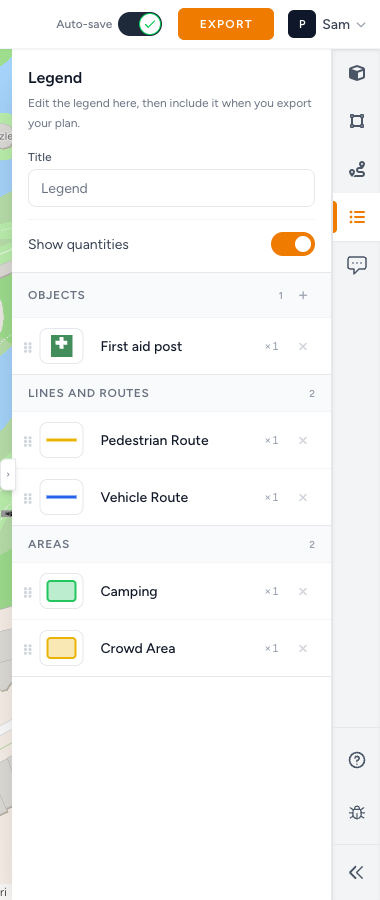
Click Legend. The heading is Legend. The line under it is Edit the legend here, then include it when you export your plan.
There is still no Texts tab. Map labels stay on Add text.
Title and quantities
| Control | What it does |
|---|---|
| Title | Printed heading. Placeholder Legend. Max 120 characters. |
| Show quantities | Switch. When on, the PDF counts how many of each item you used. |
Empty legend
If nothing is in the list yet, the panel says Your legend is empty.
- If the plan already has kit: 3 plan items are available to add. (the count the app prints). Click Add item.
- If the map is still blank: First add objects, lines, or areas to your plan.
You cannot invent a legend row for a type you have not placed.
Add items
Add item (dialog title Add to legend) is Choose something that is already used in this plan.
- Click Add item.
- Filter with Search plan items…. Section chips: All, Objects, Lines and routes, Areas, Map data.
- Pick a used type. Back to legend returns without adding.
- Empty search: No matching plan items found.
- If every used type is already listed: Everything in this plan is already in the legend.
- Done closes the picker.
You can also add from Details. Select an object, area, line, or object row, then Add to legend (short label Legend on tight chrome).
Sections and order
The list groups as:
- Objects
- Lines and routes
- Areas
- Map data (overlays such as hydrants that you turned on)
Drag with Reorder legend entry. Rename a row with Legend label for that item. Remove with Remove plus the label from the legend.
Choose items / Choose a section name appears when a section still has unused types.
Include it on export
- Click header Export. The panel is Event export sidebar.
- Tick Legend at the bottom of the sidebar (the same word as the module).
- Draw at least one export area and choose a paper size.
- Click Export PDF.
While the file builds, Export status can show Creating legend pages after the map pages. Leave the tab open until PDF downloaded.
Untick Legend if this PDF should be map-only. The sidebar list you edited is kept on the plan either way.
Read-only viewers cannot edit the legend. Locked plans cannot change it: This event plan is locked and cannot be edited.
What good looks like
- Title matches the event, for example Legend.
- Every colour or object that matters on paper is in the list.
- Show quantities is on when counts help (toilets, bins), off when they distract.
- Legend is ticked on the export you will send.
- You opened the PDF and the key matches the map.
If something blocks you
| Situation | What to try |
|---|---|
| Your legend is empty and First add objects, lines, or areas to your plan. | Place kit first: Event objects, areas, and routes |
| Everything in this plan is already in the legend. | You are done adding. Reorder or rename instead |
| No Legend tick on export | Open Export in the header, not a sidebar drawing module |
| PDF has no key | Tick Legend, export again, wait for Creating legend pages |
| Need the rest of export | Export an event plan |