Use Place objects along a line when you need a repeating run of the same event object: fencing, cones, toilets, or barriers along a corridor. It is the event-plan equivalent of traffic Bulk signs. One-by-one placement stays in Event objects, areas, and routes.
When you need this
Use it for a measured row that follows a path. Skip it to drop a single tent or generator. Skip it on a Traffic Plan — that tool is Bulk signs.
You need an organization workspace. Personal accounts still see the control, but it stays disabled.
Who can use it
The tooltip on a blocked tool is Pro feature and You need an organization account to place objects along a line.
Switch to an organization workspace such as Acme Events if that is where the tool is enabled. Paying to unlock unlimited traffic signs on one plan (Paid) does not turn this on. Feature not available for my account.
Any account with event plans enabled for its workspace can use it.
Place a row
- Open the event plan and wait until the map is ready. Clicking too soon can toast Map is not ready yet.
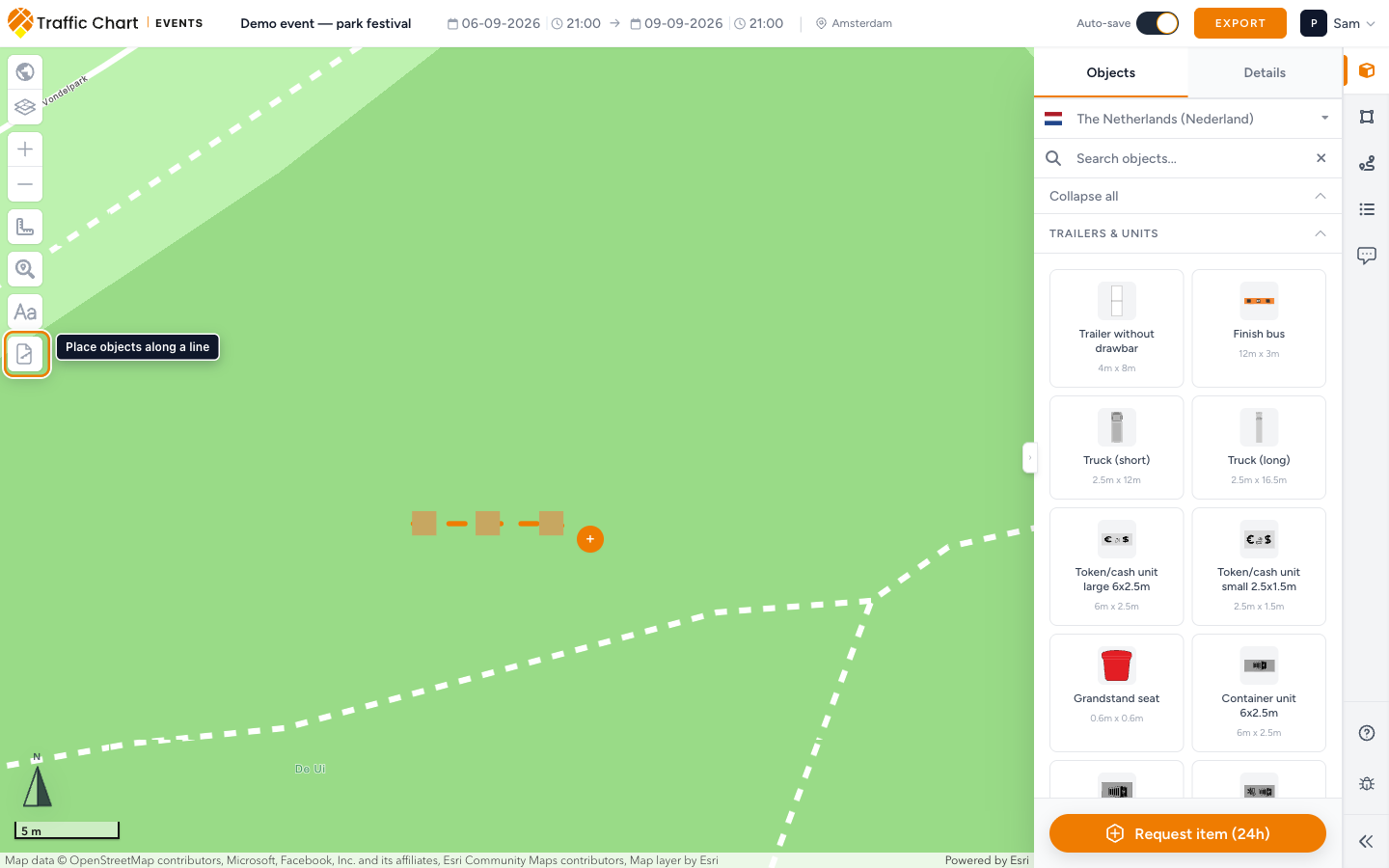
- Click Place objects along a line on the left map stack (under Add text).
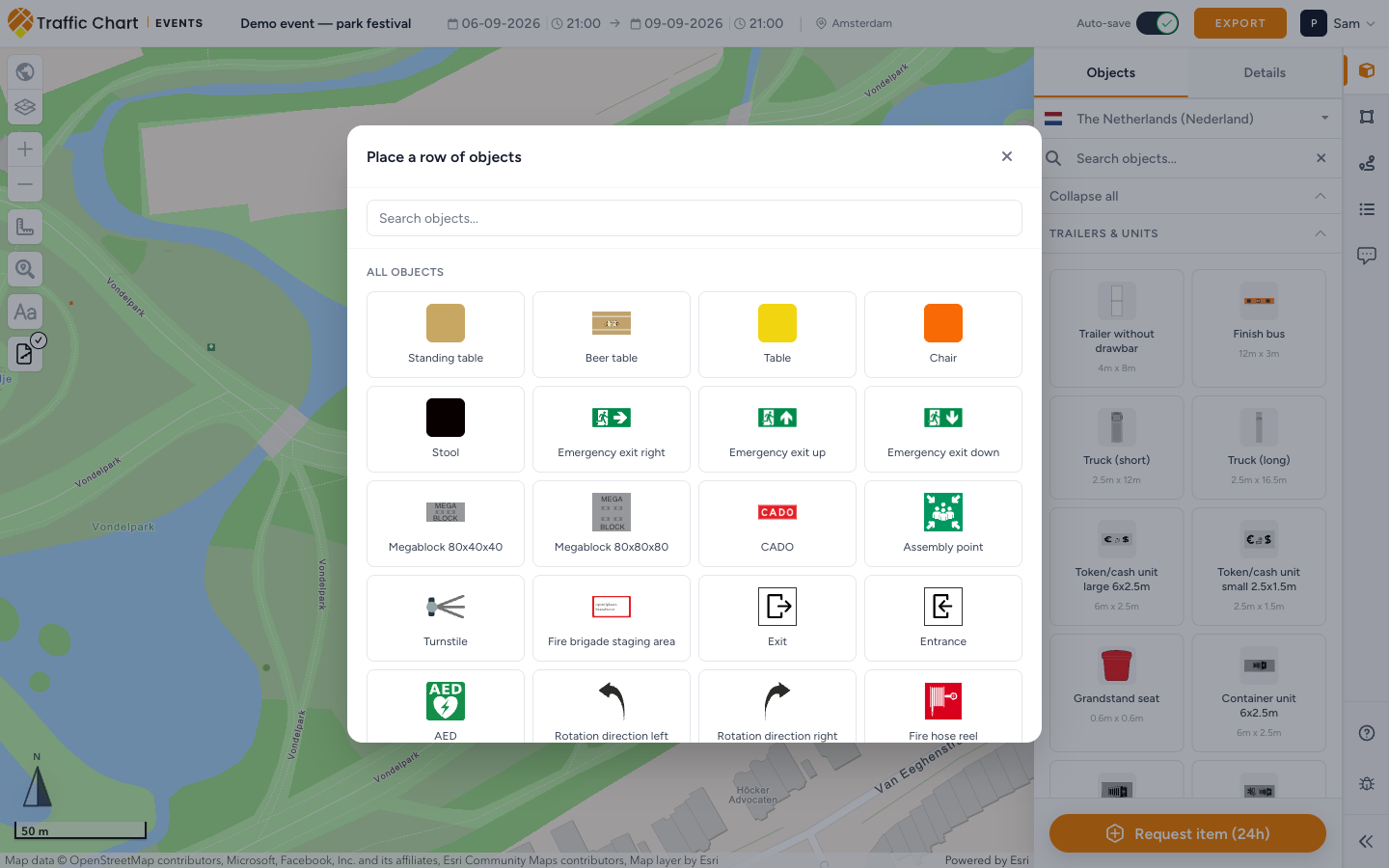
- The picker title is Place a row of objects.
- Search with Search objects.... Most used is the short recommended list. All objects is the rest of the catalogue. Empty search: No objects found.
- Click a type. The picker closes.
- Click along the map to draw the line. Double-click to finish, or use Continue line later if leftover length remains.
- Objects fill the line using the current Spacing.
The row is one item. Layers lists it under Object rows (fallback name Object row). It is not a stack of unrelated Event Objects.
Object row Details
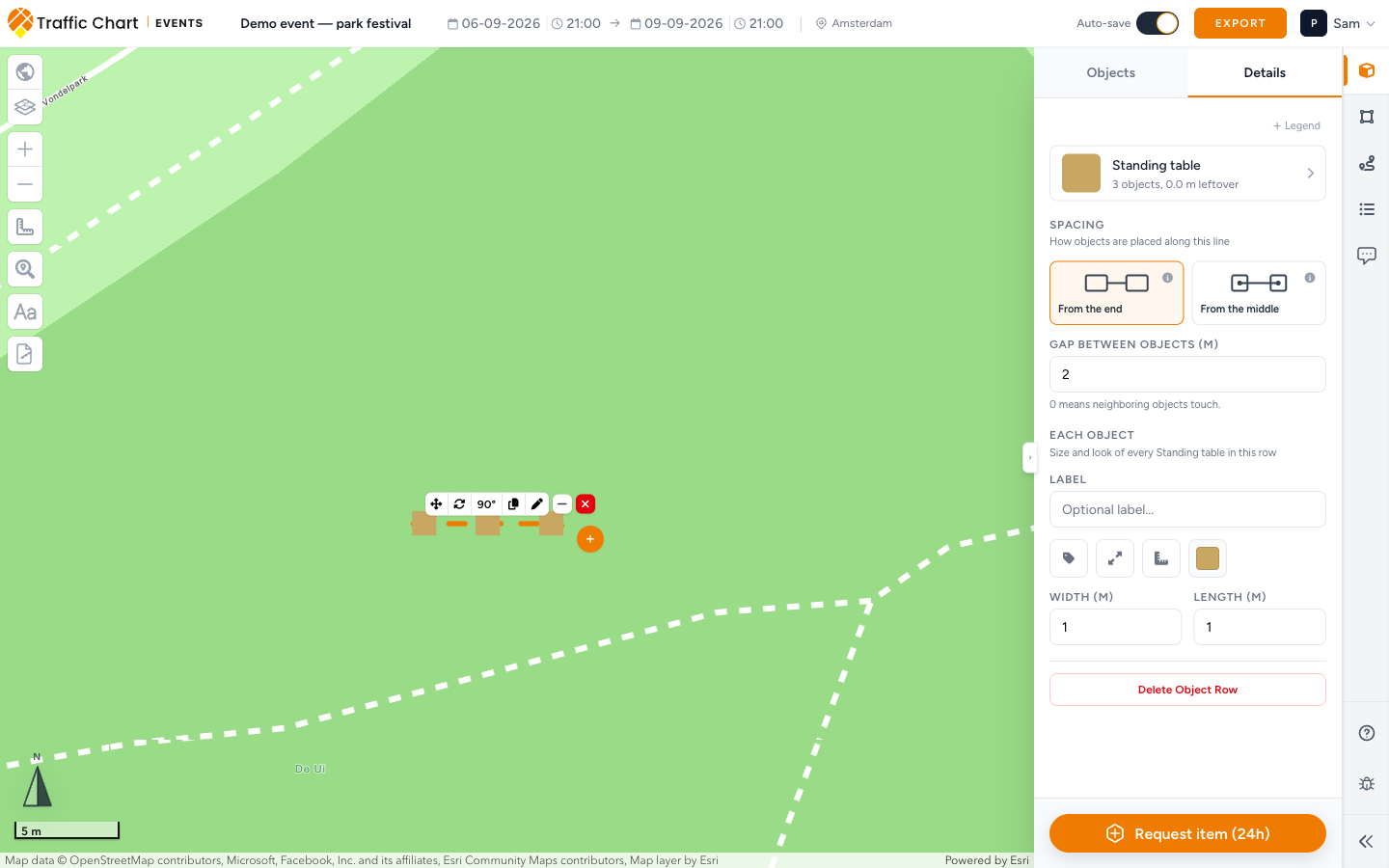
Select the row on the map, or open Layers → Object rows and click the row. Details shows the type name (for example Standing table), a leftover line such as 79 objects, 0.5 m leftover, then Spacing. If nothing is selected, Details says Select an object, object row, area, line or text to view its details.
Spacing
Spacing is How objects are placed along this line.
| Mode | Field | Meaning |
|---|---|---|
| From the end | Gap between objects (m) | The gap between the edges of neighboring objects. 0 means they touch. Hint: 0 means neighboring objects touch. |
| From the middle | Distance between centers (m) | Center to center. Hint: Measured from the center of one object to the next. |
More information opens the longer hint:
- From the end: The value below is the gap between the edges of neighboring objects. 0 means they touch. The row starts at the beginning of the line; leftover length stays at the end.
- From the middle: The value below is the distance between the centers of neighboring objects. The row starts at the beginning of the line; leftover length stays at the end.
The leftover line reads 12 objects, 3.4 m leftover (your count and leftover metres). Use Continue line to extend from the leftover end.
Each object
Each object is the size and look of every item in the row. The hint is Size and look of every plus the type name.
Change the type with Change object. That reopens the picker. Rotate 90° turns every object in the row.
Break one object out
Select a single object in the row when you need it off the line (a gate, a gap, a different size).
- Break loose takes that object out of the row. It becomes a normal Event Objects item you can move on its own.
- Keep in the row cancels a break that has not committed yet.
You must select the row first. You cannot break an object loose while a different row is armed.
Delete
Delete row removes the whole row. Delete Object Row is the same action from Details. It does not delete unrelated objects you placed one by one.
Continue the line
Continue line pins to the leftover end. Draw further along the corridor, then finish. The row keeps the same type and spacing.
If you start a new row instead, you get a second Object rows item.
What good looks like
- The tool was used from an organization workspace, not from Personal.
- The row follows the real fence or corridor, with leftover length you can see.
- From the end at 0 for a touching fence; From the middle when you care about centre spacing (toilets, bins).
- Layers → Object rows lists the run. Individual kit still lives under Event Objects.
- Auto-save: saved (or a finished Save) before you close the tab.
If something blocks you
| Situation | What to try |
|---|---|
| Pro feature / You need an organization account to place objects along a line. | Switch workspace to an organization. Feature not available for my account |
| Map is not ready yet | Wait, then click the tool again |
| No objects found. | Clear Search objects..., or pick from All objects |
| Need a type that is not in the list | Request a missing item, then keep drawing with the closest type |
| Want a PDF key of the row | Add the type to Legend: Event plan legend |